
Collection & portfolio
Best Pokémon App for the iPhone Duo
Unfold iPhone Duo and Eyevo uses both halves of the screen. Your collection opens as a binder with two facing pages that meet on the fold. The scanner lists your scanned cards on one side and keeps the camera on the other, and Home, My Collection, the Pokédex and card details spread into two columns. Close the phone and the same screens continue on the outer display.

The binder on iPhone Duo
Eyevo on iPhone Duo, unfolded and closed
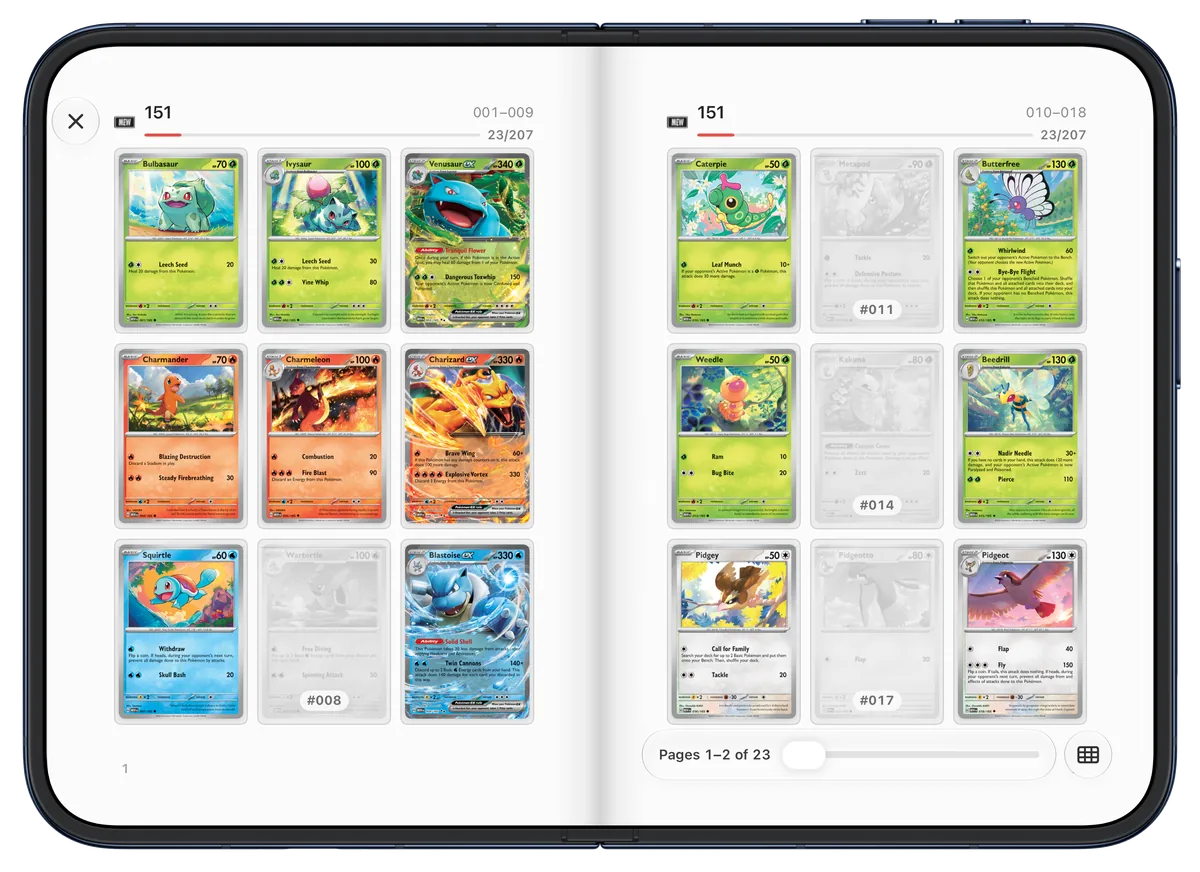
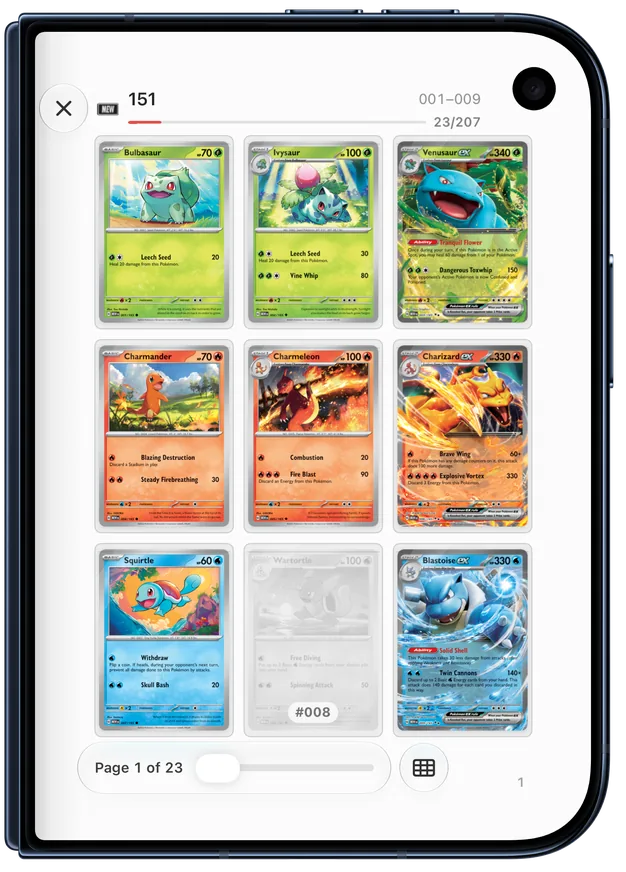
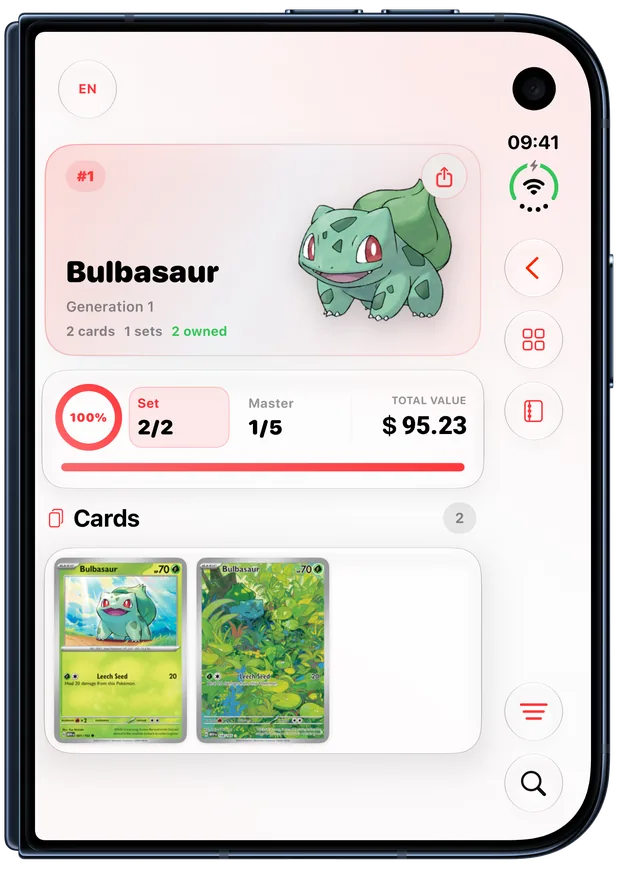
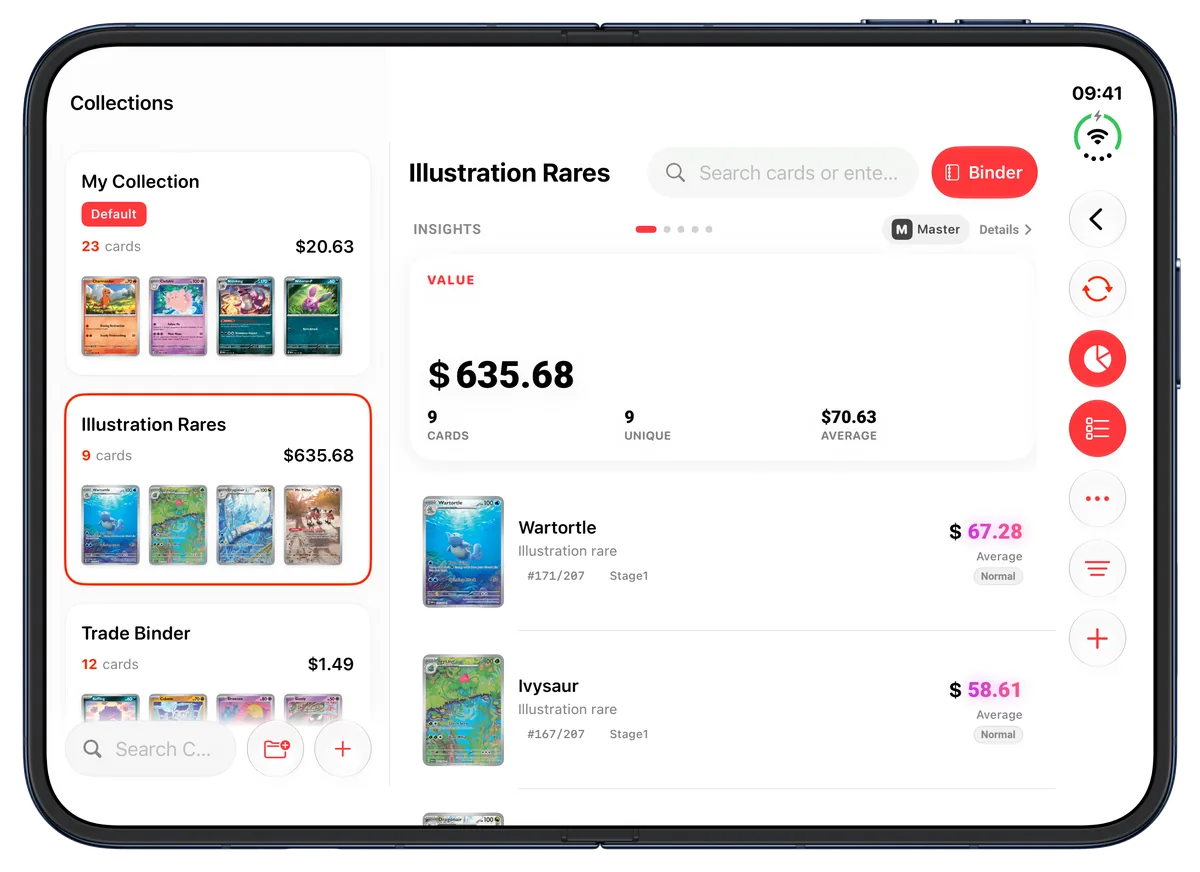
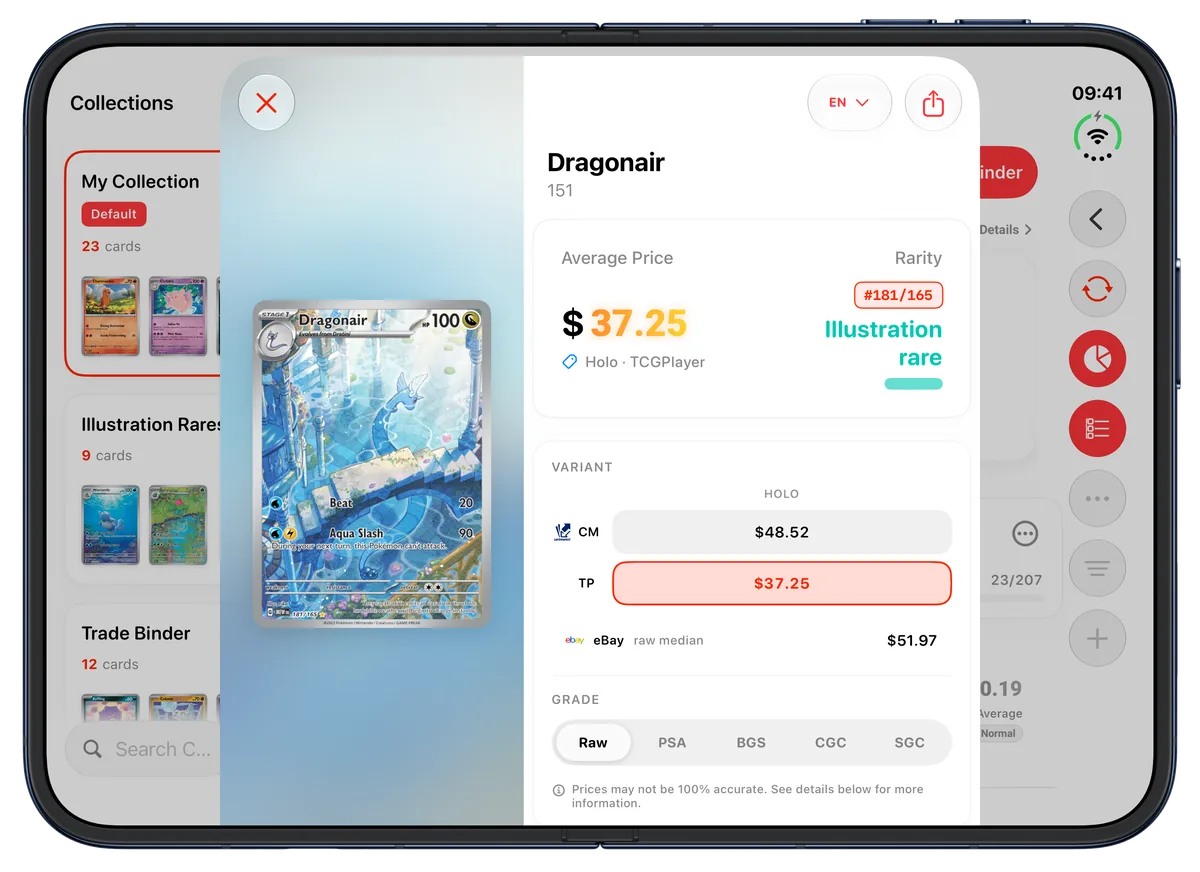
Your collection as a two-page binder
Unfolded and held sideways, iPhone Duo shows two binder pages side by side, nine pockets each, meeting on the fold. A page curls over like a book page when you turn it. By Set keeps the cards you are missing in their place: grey, faint and labelled with their collector number, so the gaps in a set are visible at a glance. Jump to Set shows how many cards of each set you have.
Collection Order shows only the cards you own, in the order and with the filters of your collection list; its empty pocket with a plus opens card search. Long-press a card to open its details, change its printing or grade, set a custom price, share it or remove it. In a wishlist binder, the cards you still want stay grey with a heart; double-tap one when you get it to mark it collected.
Scan on one half, review on the other
With the phone unfolded and sideways, the scanner splits at the fold: the cards you scanned in this session are listed on the left and the camera stays live on the right. You can swap the two sides, or hide the list to give the camera the whole screen. Opening the session shows it in place of the list while the camera keeps scanning.
On the outer display, and with the inner display upright, the scanner uses the full-screen camera with the drawer you know from other iPhones. If you close the phone during a session, the camera pauses.
Two columns across the app
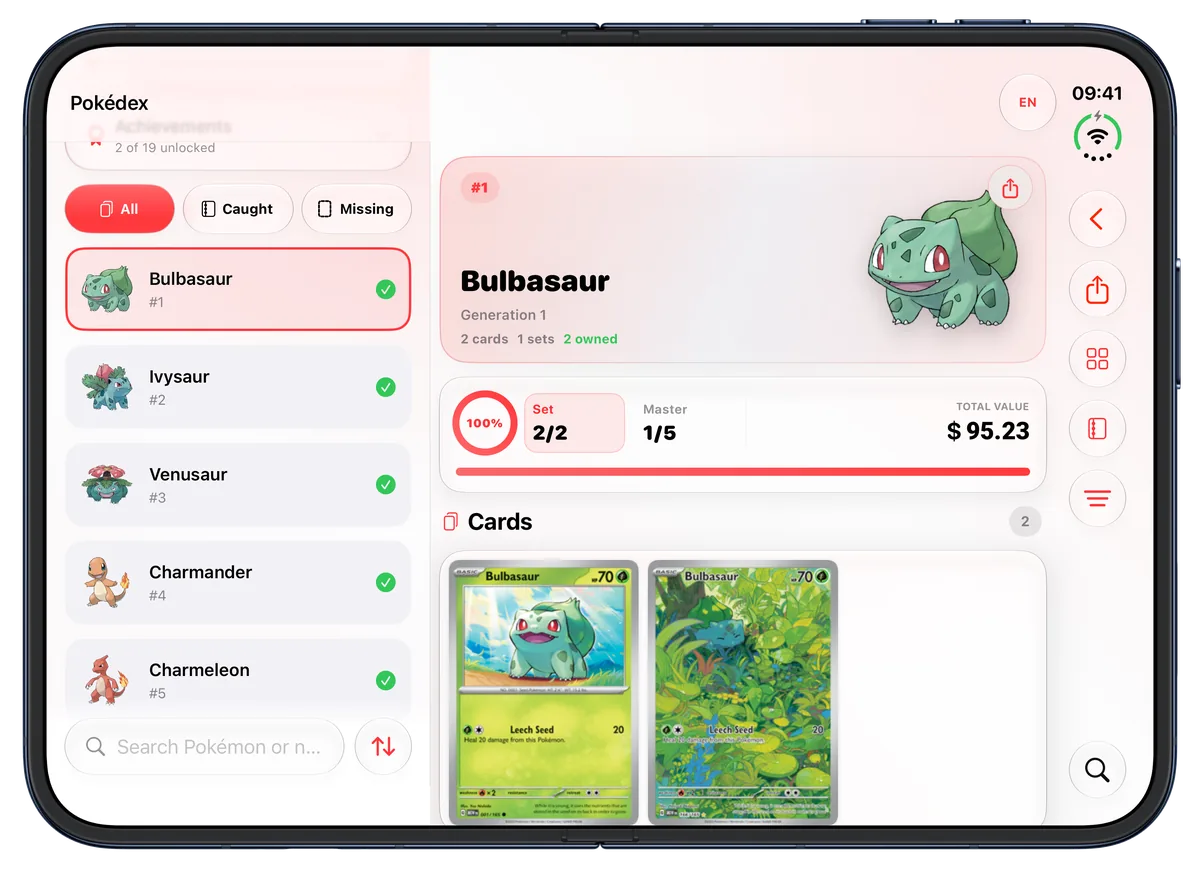
Home keeps your collection dashboard on the left, with search and the scan button at its bottom, while the rest of Home scrolls on the right. Recently Scanned shows eight cards in two rows. In My Collection, the list of your collections stays beside the collection you open, and the Pokédex keeps a searchable list of species beside the one you selected.
Card details keep the card on its own pane while its prices and information scroll next to it. Set pages show the set beside its summary and list the cards in two columns. The first-launch screens and the share editor use both halves of the display as well.
Book pose, closed and upright
In book pose, with the phone half open, Eyevo keeps the fold free: each binder page and each pane sits on its own half, and no card lands on the crease. Card details move onto one half and use the iPhone layout there.
Closed, the outer display gets the familiar iPhone layout, with one binder page holding the same cards as the spread. Held upright while unfolded, the inner display shows one column and one binder page. Eyevo also works with the Duo's vertical toolbars and its status bar along the side of the screen.
VoiceOver, keyboard and Reduce Motion
VoiceOver reads every pocket with the card's name and collector number, offers named actions for what a tap or long-press does, and announces each page. The page scrubber can be adjusted with a swipe, and the binder's controls stay visible while VoiceOver is on.
With a keyboard, the arrow keys and the space bar turn pages, Option with an arrow jumps to the next or previous set, and Escape or Command-W closes the binder. With Reduce Motion turned on, the cover fades and pages cross-fade instead of curling.
Common questions
Is Eyevo optimized for iPhone Duo?
Yes. Since version 5.0.5, Eyevo lays out its screens for the unfolded inner display, book pose and the closed outer display. The binder, the scanner, Home, My Collection, the Pokédex, set pages and card details use two columns when the phone is unfolded and held sideways.
How do I open the binder?
Open a collection and tap Binder in its header, or choose Open Binder from the ⋯ menu. The binder opens on its cover; tap the cover to start turning pages.
What happens when I fold or close iPhone Duo while the binder is open?
The binder stays open on the same cards. In book pose the pages leave the fold free. Closed, the outer display shows one page with the cards you were looking at, and unfolding brings the two-page spread back.
Can I use the binder on other iPhones and on iPad?
Yes. Every iPhone shows the binder one page at a time. iPad shows two facing pages in landscape when the window is wide enough, and one page otherwise.
References
Explore more features
-
 Live Card Scanner Point your camera at a card, review the result and confirm the printing before adding it to your collection. Learn more
-
 Collection Tracker Record each copy with its printing, grade, language and optional custom value. Rename collections and move cards between them. Learn more
-
 Market Prices Check available Pokemon card values in your preferred currency and keep track of your collection. Learn more
Try it in Eyevo
Free to download on the App Store and Google Play.