Collector walkthroughs
3D-printed card scanner box
Print the box I designed for phone-based card scanning. Set it up, avoid glare and review each result in Eyevo.
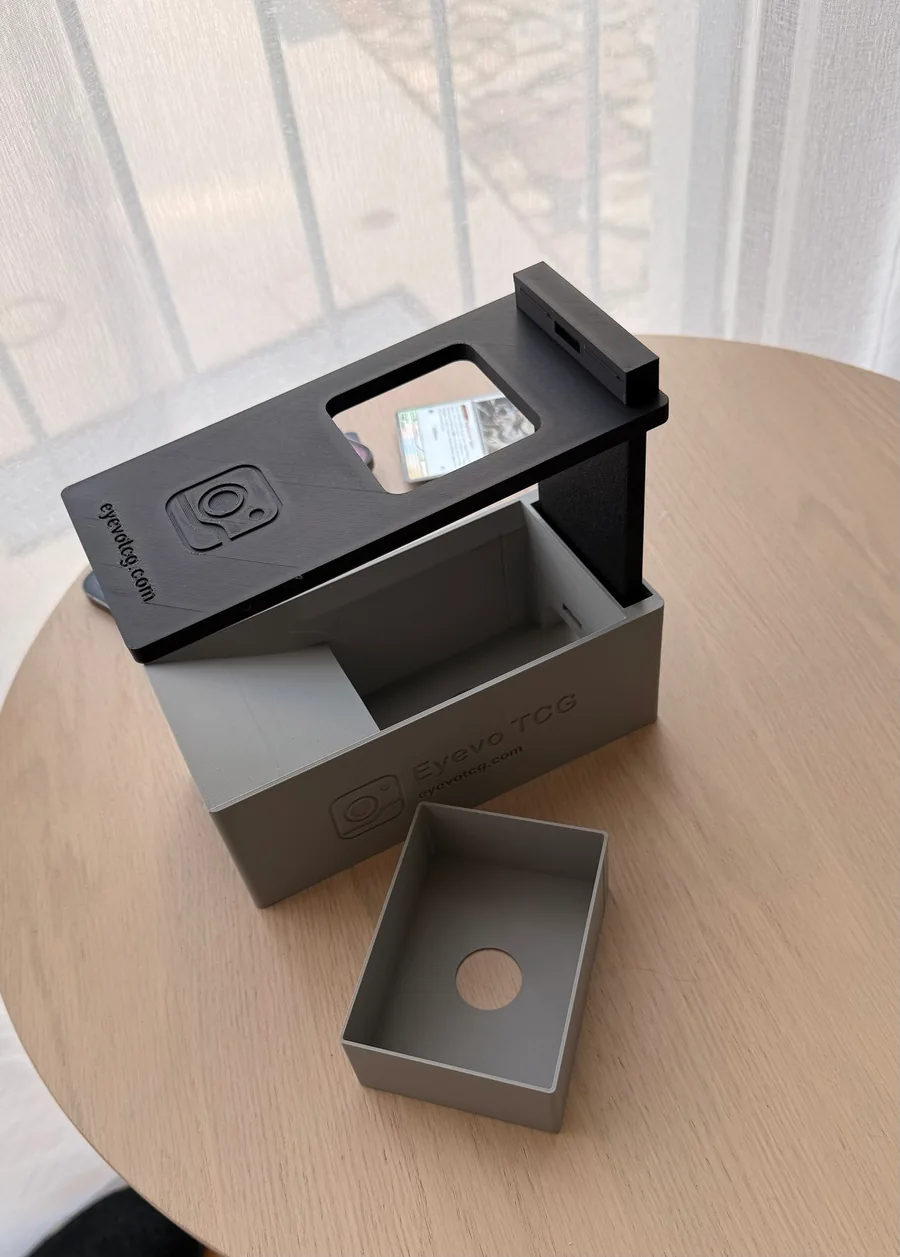
Position your phone over the camera window and slide one card down the funnel. Check its result before feeding the next card. The box holds the setup steady; you feed each card yourself.
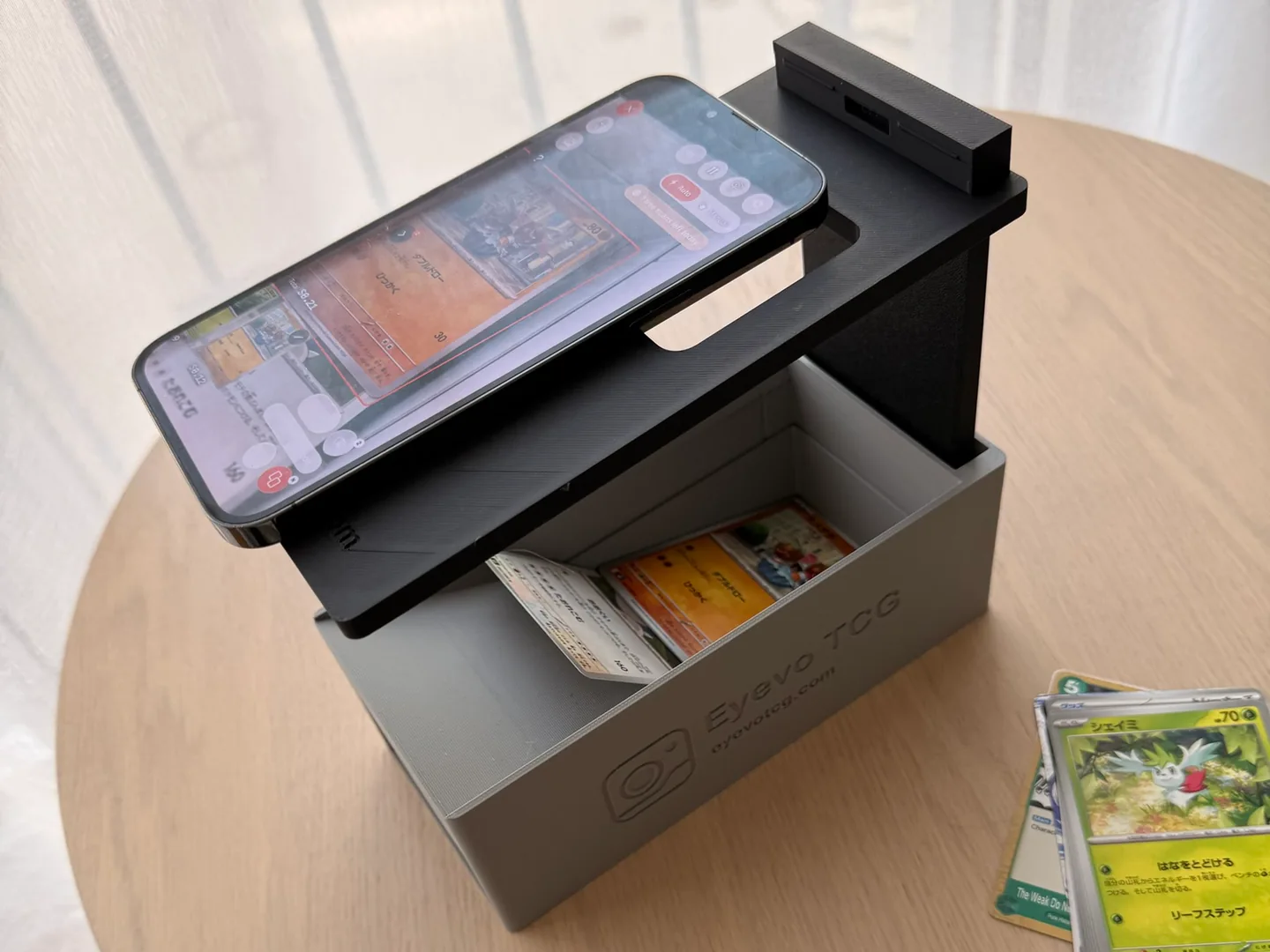
An optional accessory you can print yourself. You can use Eyevo without the box.
Before you start
- Printed box, phone with Eyevo and a few test cards.
Step by step
-
Align the phone and camera
Place the box on a stable surface with the phone camera over the window. Check that the card area is unobstructed and in focus. Adjust the phone before starting.
-
Check the light with a few cards
Clean the lens and test regular, sleeved and holo cards. Move the light or rotate the box if reflections cover the artwork or text.
-
Feed one card at a time
Slide one card gently down the funnel onto the tray. Wait for Eyevo's result and resolve unclear matches before continuing. The box does not feed cards automatically.
-
Review the results before saving
Compare the set, collector number and language with your cards. Choose the correct printing and foil variant yourself; a familiar illustration does not establish the finish. Check quantities when adding the reviewed cards to a collection.
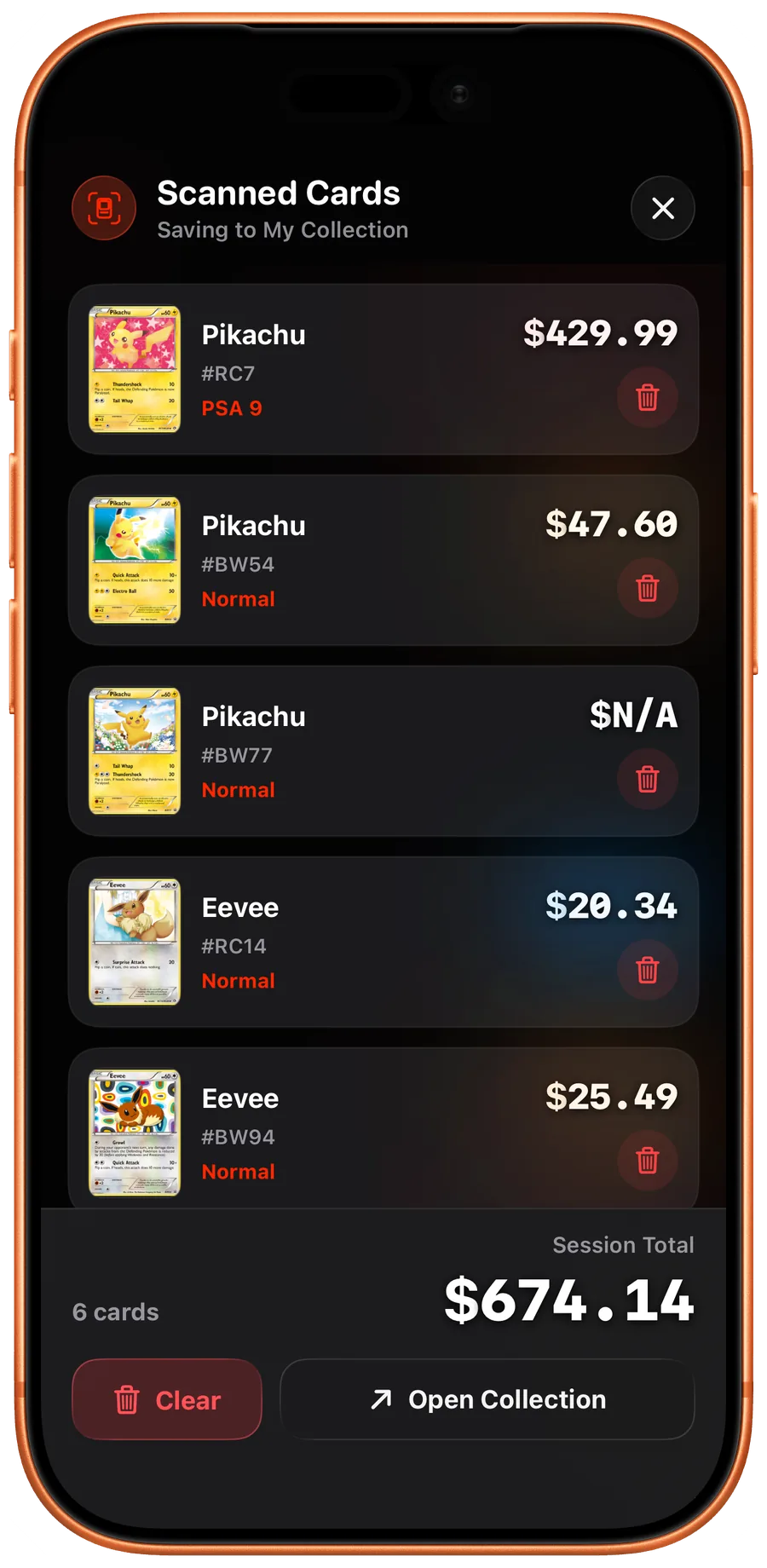
iOS Review the scan session before saving cards. 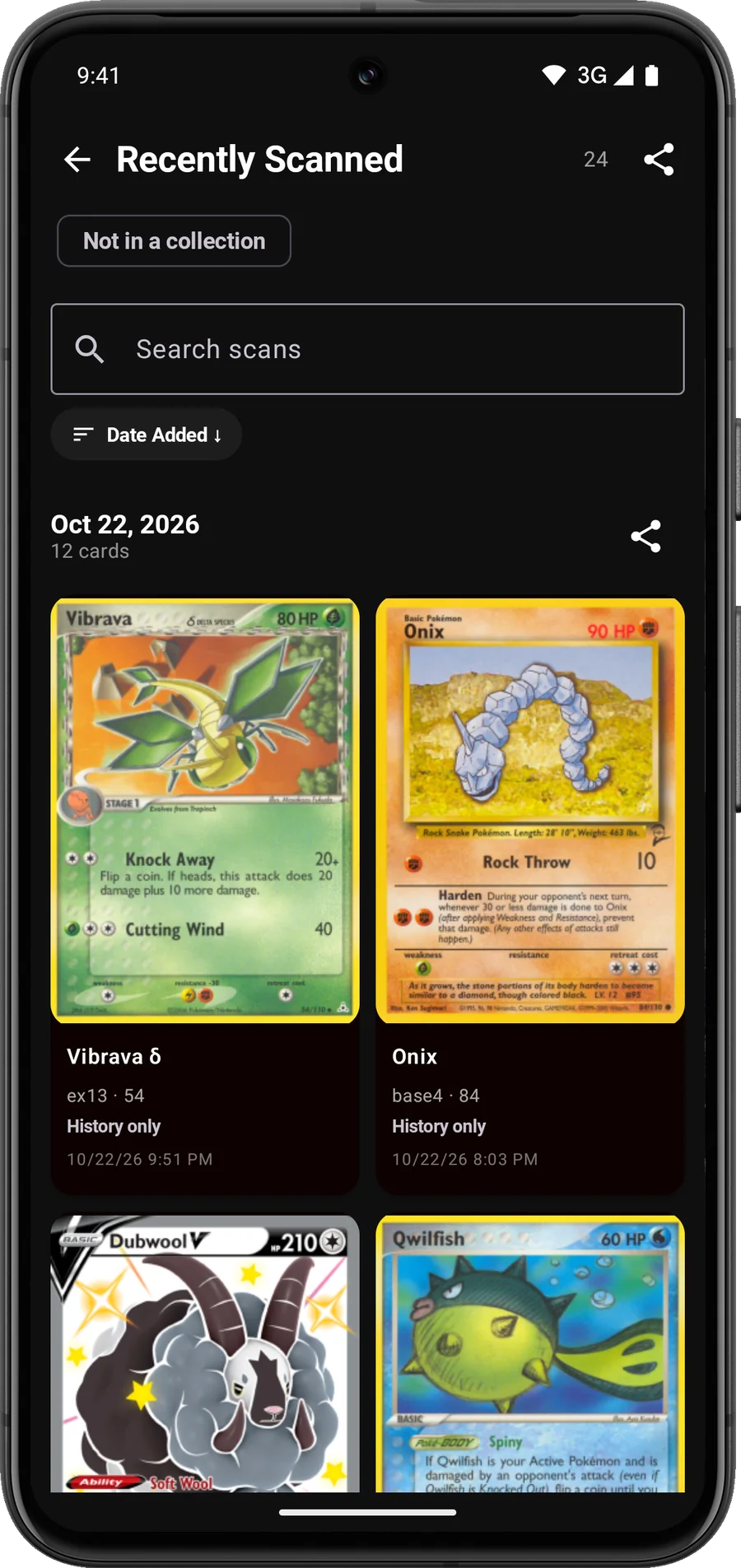
Android Check recently scanned cards before adding them. -
Empty the tray
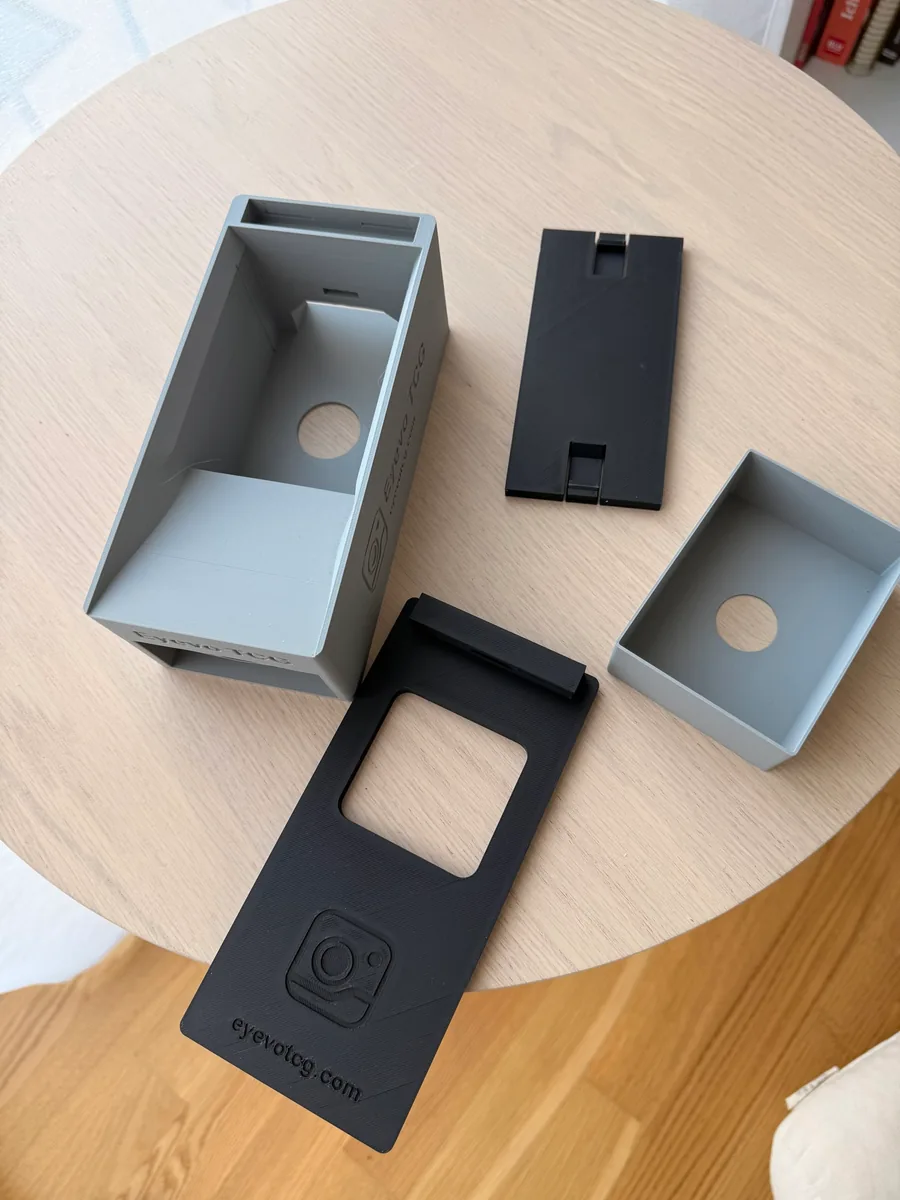
Push the slide-out tray out from the back, or lift the top-loading tray. Remove the phone before dismantling the two-part stand.
Why I designed my own box
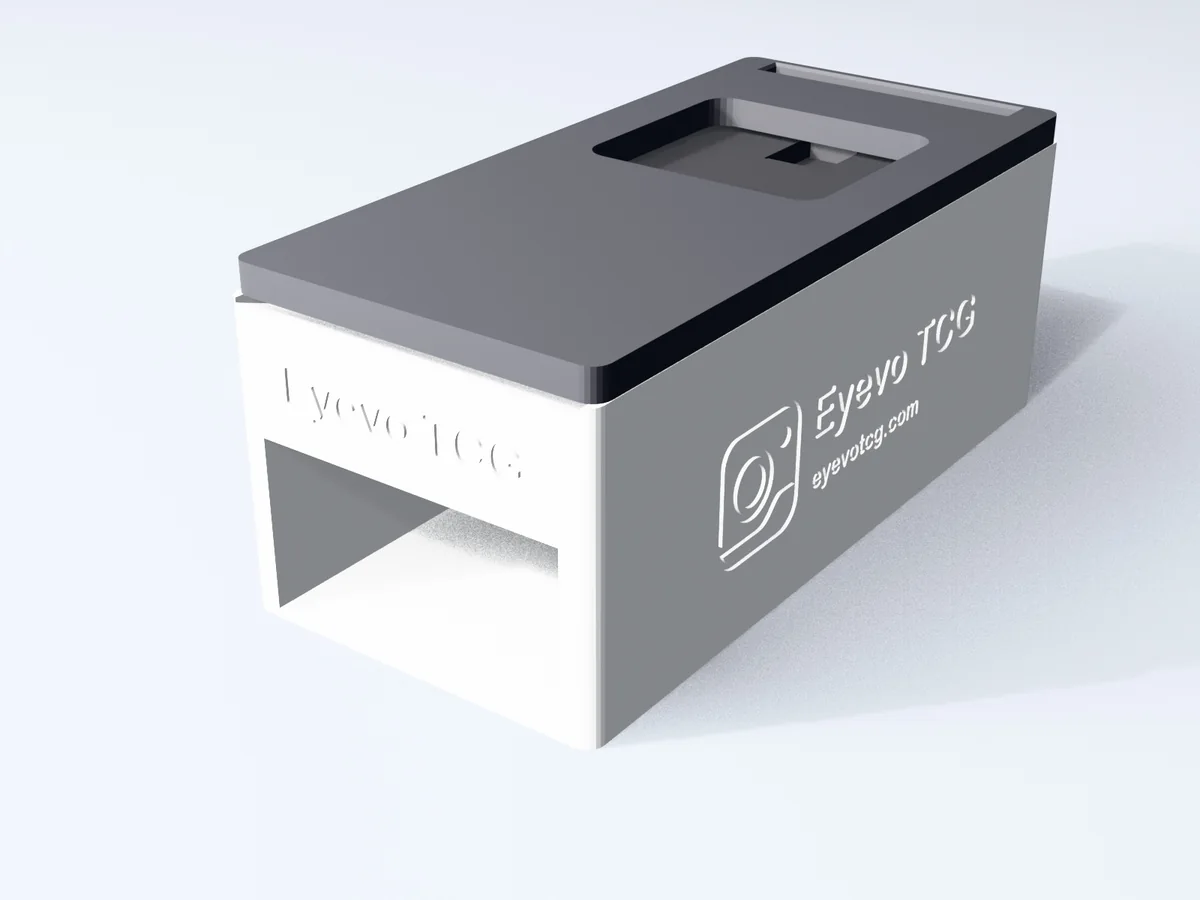
I'm Julian Beck, the developer of Eyevo. My previous tray was awkward to remove, so I designed my own box with a rear push-out opening, a steeper slide and a two-part stand that packs into a closed box.
Light, sleeves and reflective cards
Use diffuse light instead of a direct lamp reflection. Sleeves and foil can create glare, so test again when changing card types. Keep protected cards sleeved where possible; never force them through the funnel.
Choose the print version
Choose a slide-out or top-loading tray, and a two-part folding or one-piece stand. The tested PLA profile uses a 0.4 mm nozzle and 0.2 mm layers, without supports, screws or glue. The 190 mm base does not fit an A1 mini's 180 mm bed. Check the profile and your printer before printing.
Assembly and scanning
Parts, tray and storage
Get the print files
Choose your tray and stand on MakerWorld or Printables. The listings contain the STL parts, P1S 3MF projects and current print notes.
Check your result
Your setup is ready for scanning and adding reviewed cards to your collection.
Common questions
Do I need the box to use Eyevo?
No. It is an optional phone stand and tray. Eyevo also scans without it.
Does it scan a whole stack at once?
No. Feed cards individually, wait for each result and review matches before saving.
Will my phone fit?
Check the model dimensions and camera position. The camera must align with the window and focus on the card. Screen size alone does not confirm compatibility.
Can I leave sleeves on?
The design allows sleeves. Check that yours move freely and adjust the light to avoid reflections.
Features used in this walkthrough
 Live Card Scanner
 Scan Sessions
 Exact Printing & Variants
 Collection Tracker
More walkthroughs
Open Eyevo and follow the steps.
Use your own cards as you follow the steps.
Walkthroughs describe the current app. Labels and available options can differ by device and version.