
Collector walkthroughs
Found your old Pokémon cards? Start here.
An old binder is back on the table. Identify its cards, check their printings and build an inventory one page at a time.
Start with ten or twenty cards. Scan each one, check the printing and condition, then record how many copies you own. With those details in place, compare the available values.
Before you start
- A small group of cards and good light for checking the front and back.
- An internet connection to prepare Eyevo's card data before you start.
Step by step
-
Choose one small group
Take one binder page or a pile of ten to twenty cards. Keep protected cards in their sleeves and handle them by the edges. Set visibly damaged cards aside for a closer look.
A manageable group makes it easier to compare each result with the card in your hand. Age, a familiar Pokémon or a shiny finish alone does not establish value.
-
Identify the cards one at a time
Connect to the internet and download the card data you need in Eyevo. Choose from English, German, French, Spanish, Italian, Portuguese, Japanese and Traditional Chinese to match the cards in your binder.
Point the scanner at one card, then move to the next. Review the matches from the scan session. If glare obscures a card, change the angle or use name and number search. Scan each card separately; a photo of a whole binder page will not record them all.
Several cards in a row
Scan cards one at a time and review the matches before saving.
Recorded demo. Prices shown may have changed.
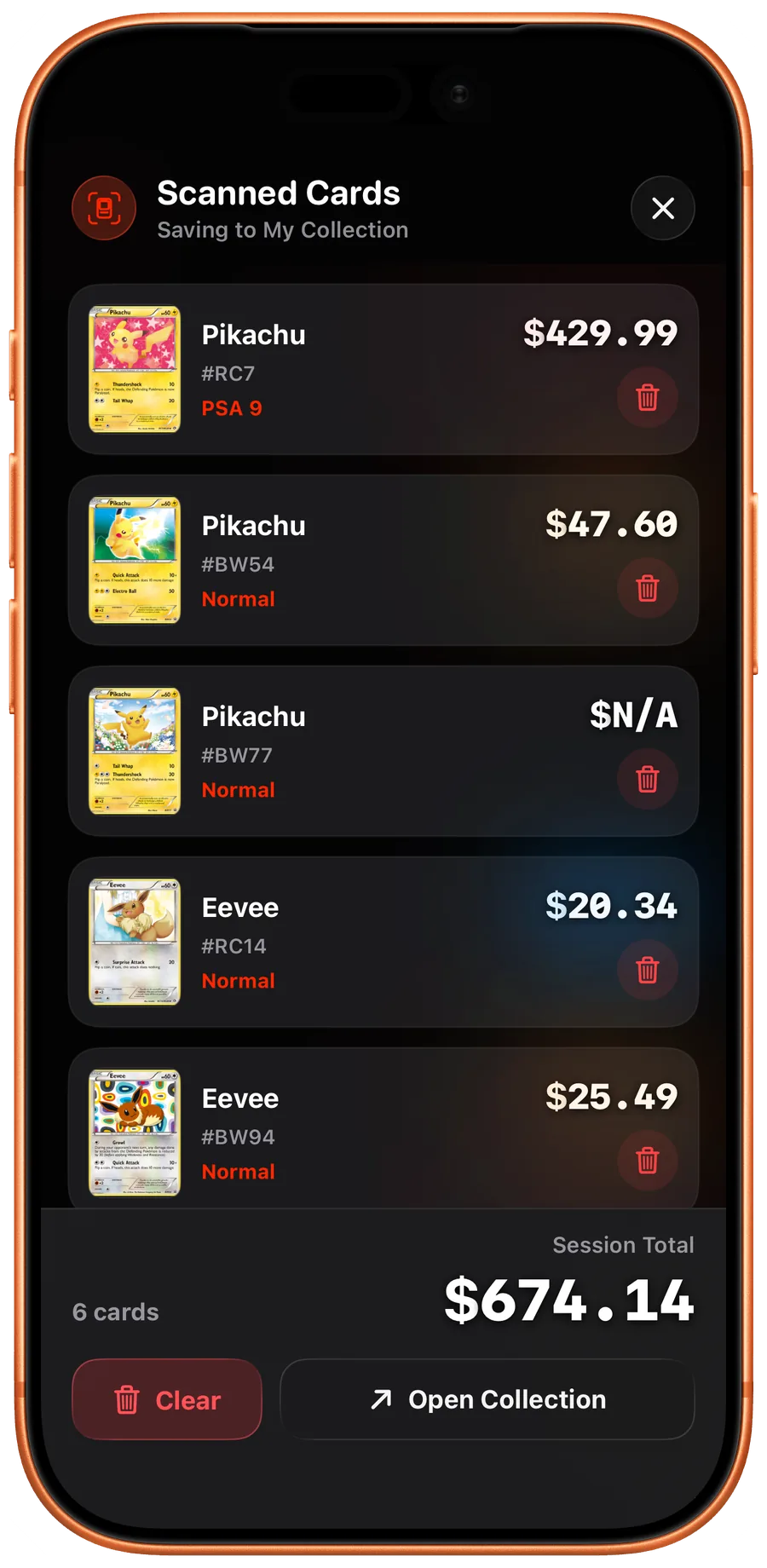
iOS Review the cards identified in a scan session. 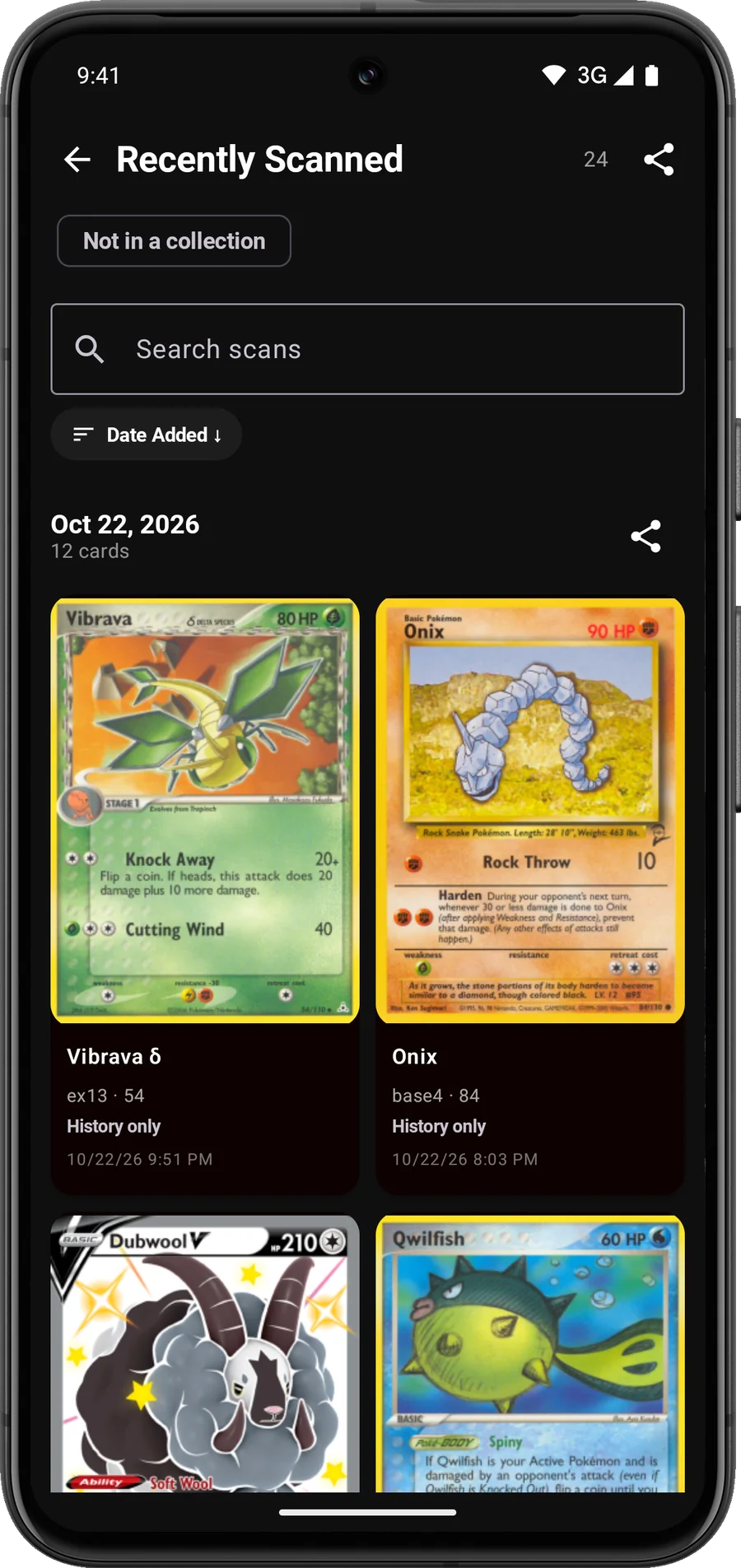
Android Review recently scanned cards before adding them. -
Match the printing to the physical card
Compare the set, collector number, language, foil treatment and any edition or promo stamp. Similar artwork is not enough.
Training Court, for example, appears as 169/192 in Rebel Clash and 282/264 in Fusion Strike. Those are different printings. Even within one set, a regular copy and a reverse holo may share a number while needing separate inventory entries.
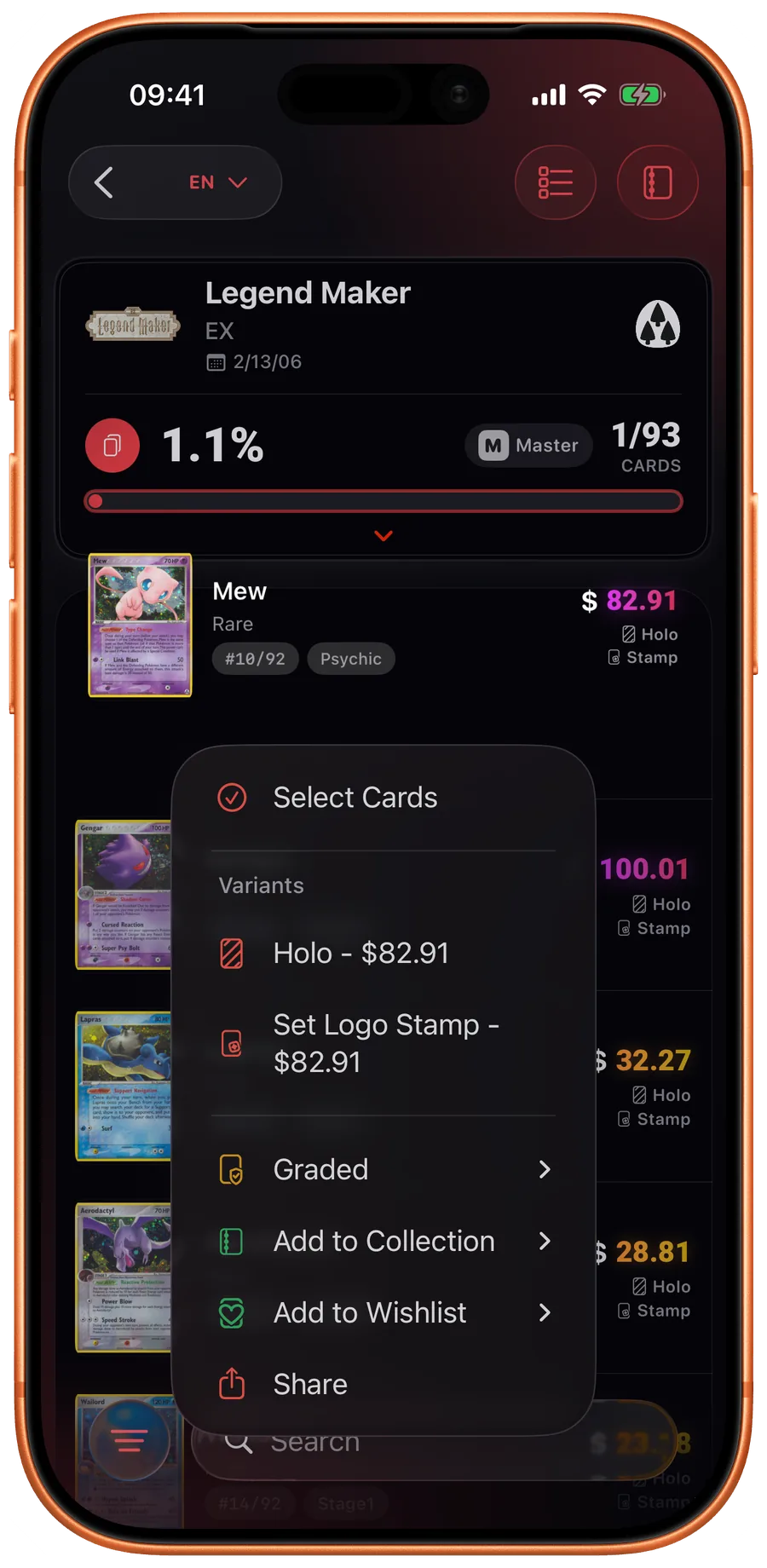
iOS Choose the printing that matches your copy. -
Check condition yourself
Look at the front, back, corners and surface under good light. Creases, scratches and worn edges matter when comparing your card with another copy.
Eyevo helps you identify the card. It does not authenticate a card or automatically grade the condition of an ungraded copy. For an already graded card, use the actual company and grade shown on its holder.
-
Save your first group
Create a collection such as Old Binder. Add the reviewed cards and confirm that the quantities match your pile, including duplicates and different finishes.
Review available card values after the printing is correct. For a possible sale, also research completed sales of the same release in comparable condition. A missing quote is unknown, not a value of zero.
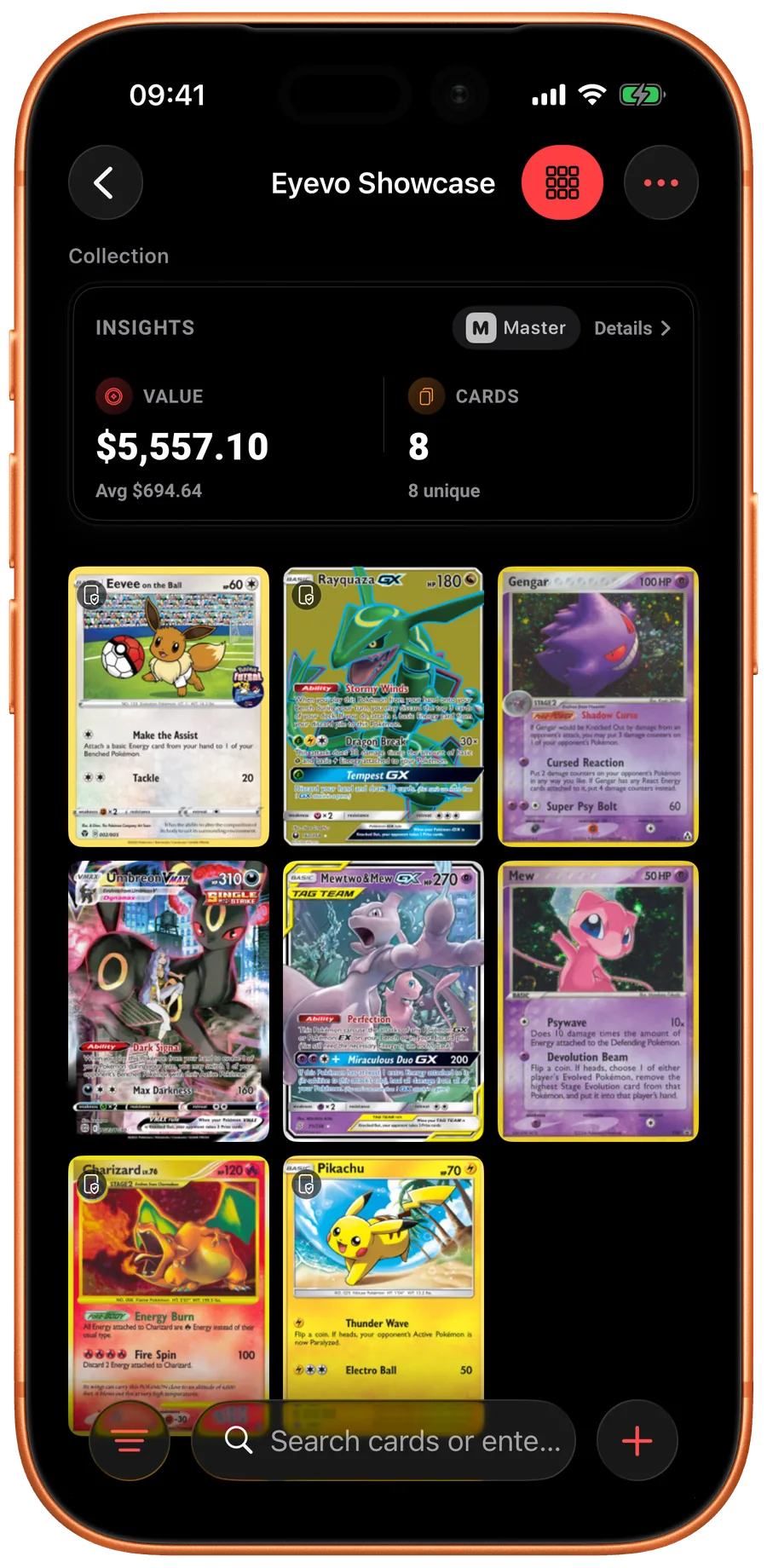
iOS Check the collection's cards and recorded quantities. 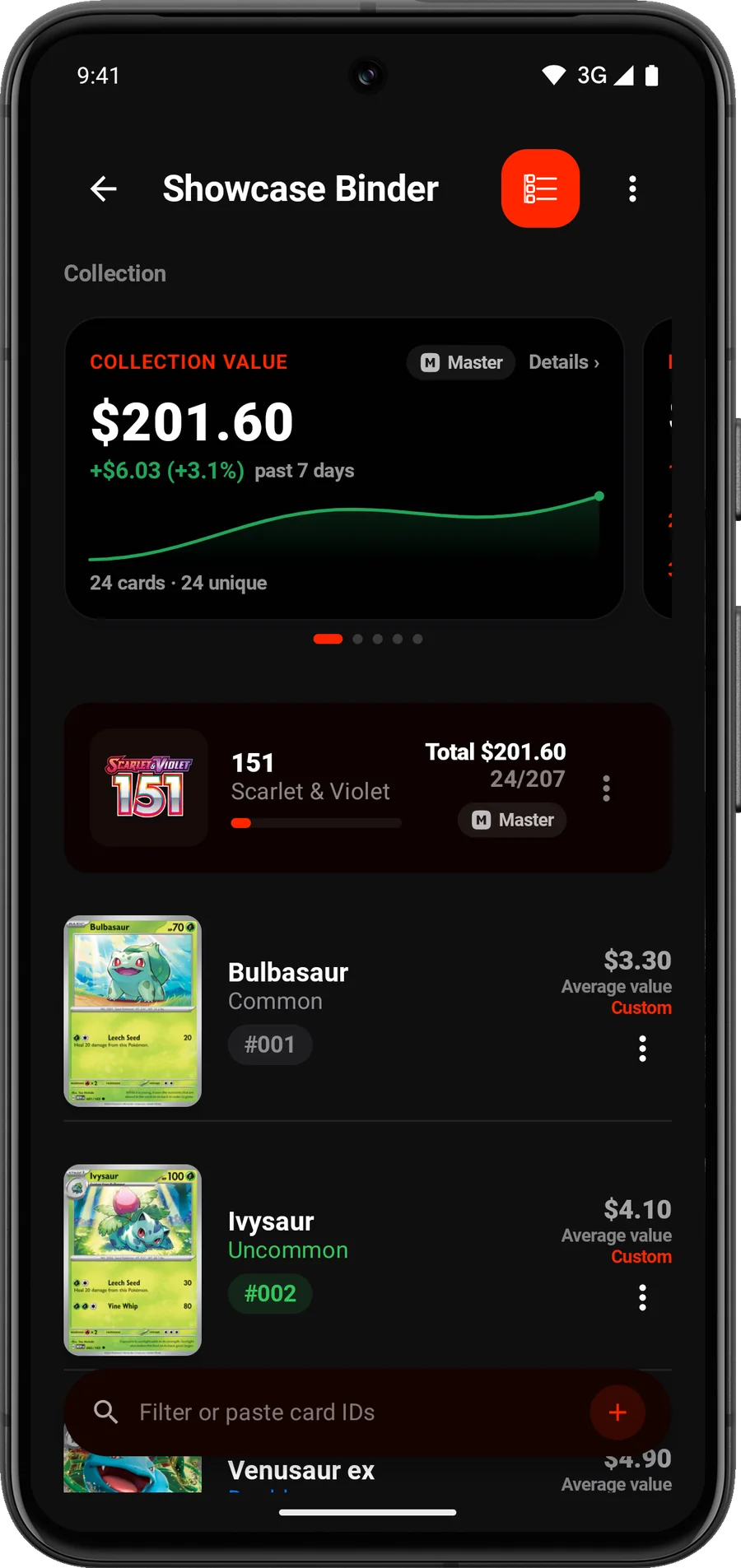
Android Check the collection's cards and recorded quantities. -
Keep a copy before you continue
Export a CSV or JSON file if you want an independent copy. Export requires Pro on iPhone and iPad; Android currently offers standard collection export without that restriction.
Use Sync & Backup for selected collections across your own devices, or choose a collection share when showing someone else. Sales take place outside Eyevo.
Before you rely on the total
A collection total combines the available values for the entries you saved. It is a reference for further research.
- Condition, demand and the way you sell affect a buyer's offer.
- Selling fees, shipping and other costs can reduce what you receive.
- Offline values reflect the last available update. Reconnect before making a current comparison.
Check your result
Your first group is recorded with the right quantities and printings, plus values where available. Continue with the next binder page.
Common questions
Can I scan a whole binder page at once?
Use one card at a time. A live scan session lets you continue through a pile and review the matches together; one binder-page photo does not create a complete inventory.
Does a successful scan mean the card is genuine?
No. It means Eyevo found a catalog match. Authenticity requires a separate inspection of the physical card.
Will a buyer pay the collection total?
Not necessarily. The total uses available reference values. Your cards' condition, the sale format, fees and a buyer's offer affect the amount you receive.
Features used in this walkthrough
 Live Card Scanner
 Scan Sessions
 Exact Printing & Variants
 Collection Tracker
 Market Prices
More walkthroughs
Open Eyevo and follow the steps.
Use your own cards as you follow the steps.
Walkthroughs describe the current app. Labels and available options can differ by device and version.