
Collector walkthroughs
How to organize a growing Pokémon card collection
Your cards are spread across binders, boxes and recent pulls. Give them a clear order and keep the same record in Eyevo.
Choose how you want to sort your physical cards, then name your Eyevo collections to match. Record new cards in small groups, check the printing and quantity, and put them away.
Before you start
- Your binders or boxes, including a place for cards that still need checking.
- A decision about what each digital collection represents: a binder, a set or a specific collecting goal.
Step by step
-
Give each collection one purpose
Decide whether you want collections for physical binders, individual sets or a focused goal such as favourite Pokémon. Use names you will recognize later, such as 151 Binder or Trade Duplicates.
You do not need one collection for every small stack. Choose a level you can keep current. Eyevo records your inventory; arranging physical binder pages remains your task.
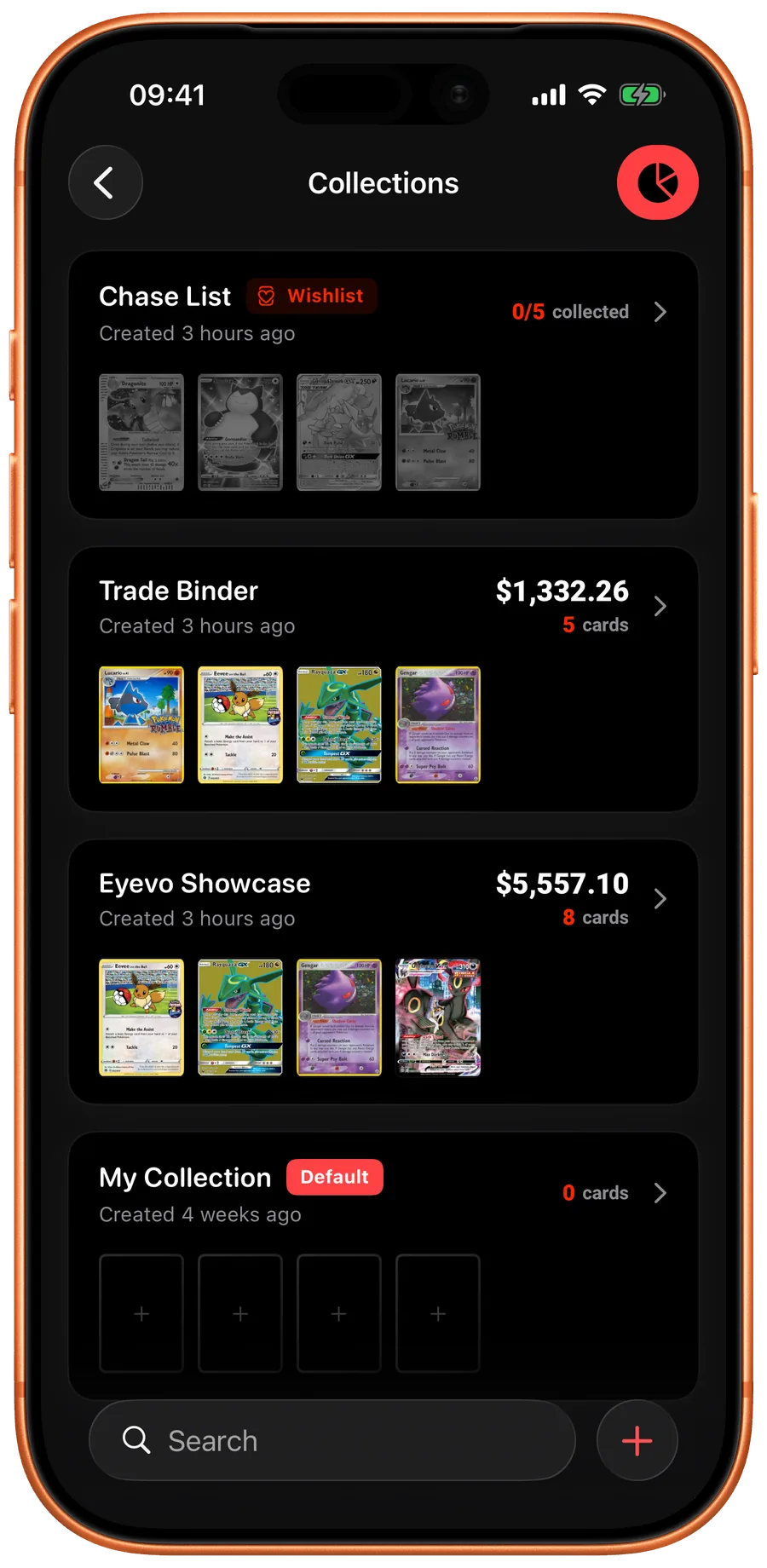
iOS Use collection names that reflect how you collect. 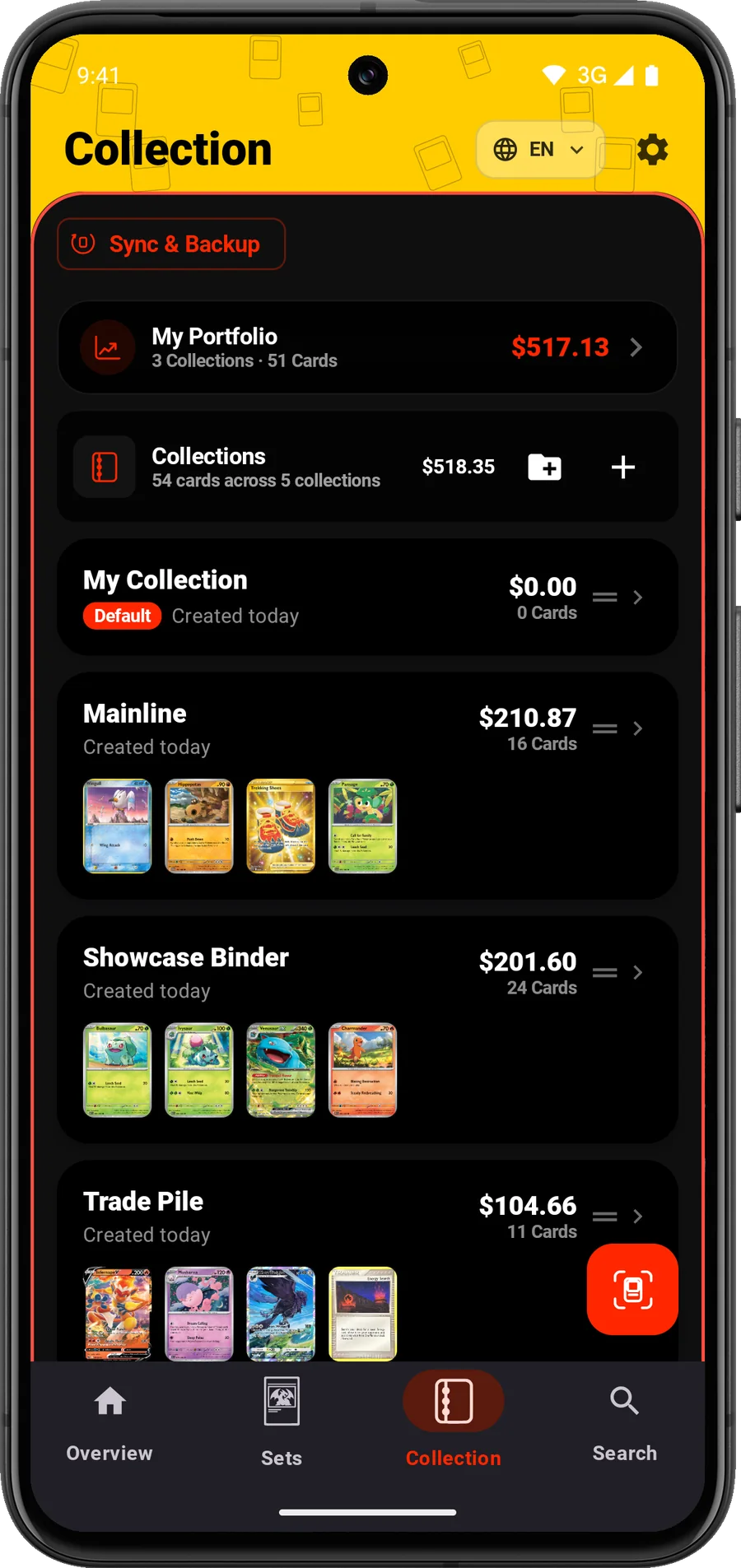
Android Use collection names that reflect how you collect. -
Choose a physical order
Within a set binder, collector-number order makes gaps easier to find. In mixed boxes, you might group by set before sorting numbers. Keep the same rule when adding new cards.
Use a separate tray or divider for unrecorded arrivals. That avoids mixing cards you have checked with cards that still need attention.
-
Record new cards before filing them
Scan a small group sequentially, review each match and add it to the intended collection. Search by name or number when a result needs correcting.
Confirm the language and finish before saving. Two copies with the same artwork can be different inventory entries.
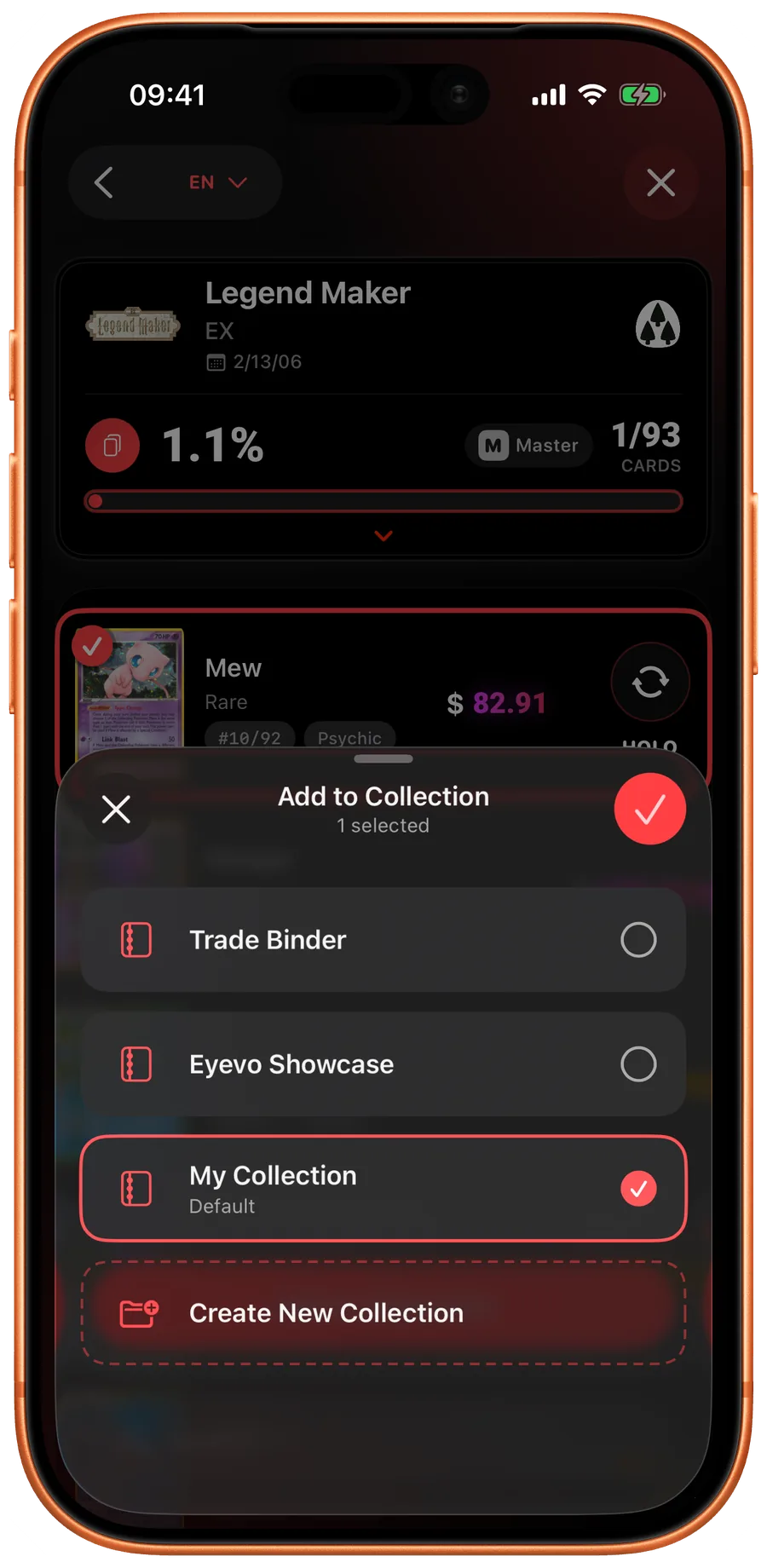
iOS Add reviewed cards to the collection you intended. -
Count copies and finishes separately
For example, if you own three regular copies and one reverse holo of the same numbered card, check that the inventory reflects both the quantities and the two finishes. Do not count four identical copies if one has a different printing.
After saving, compare the visible entries with the physical cards. Move the cards into their storage positions only after the counts agree.
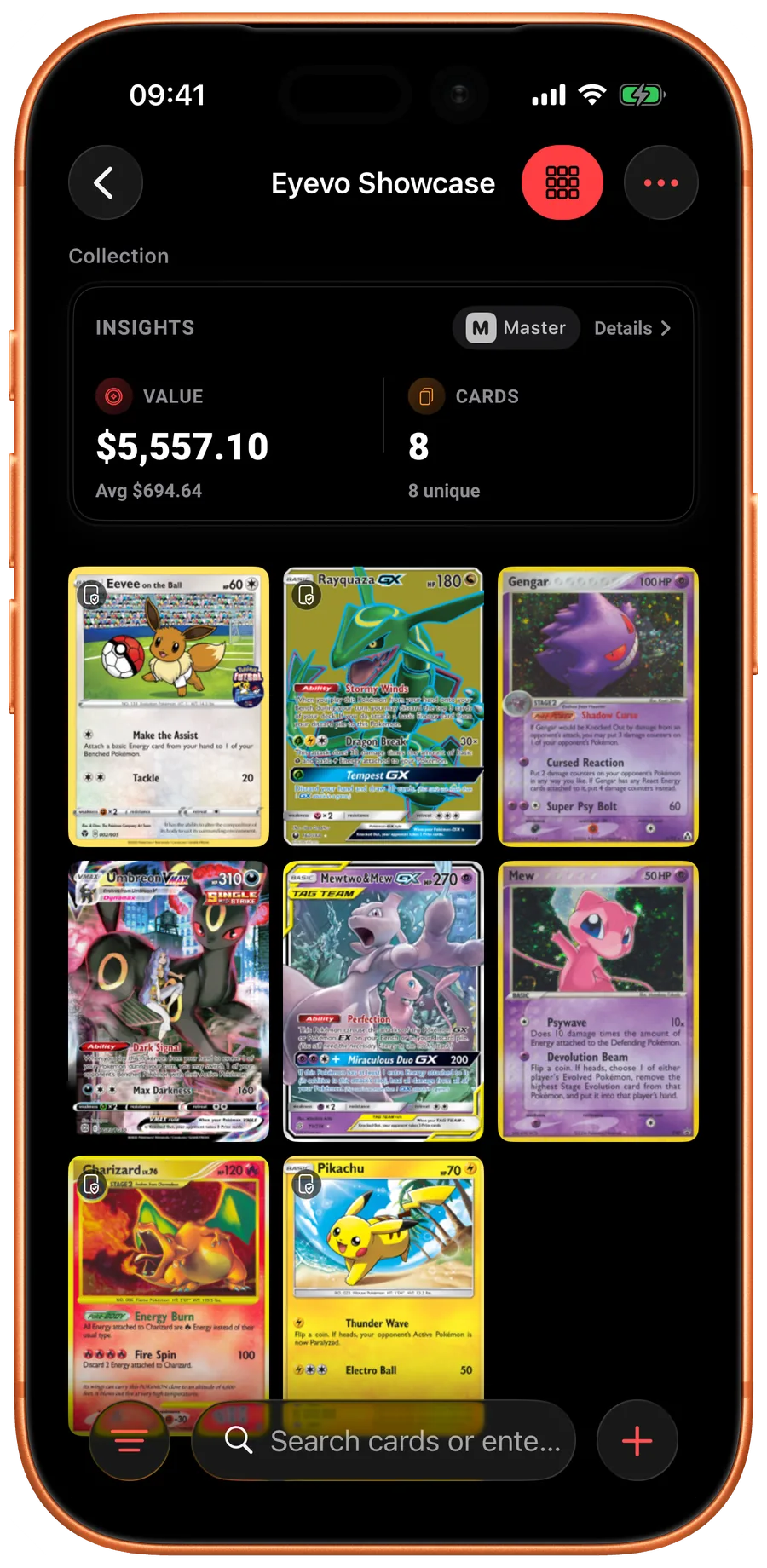
iOS Compare the saved entries with the cards in front of you. 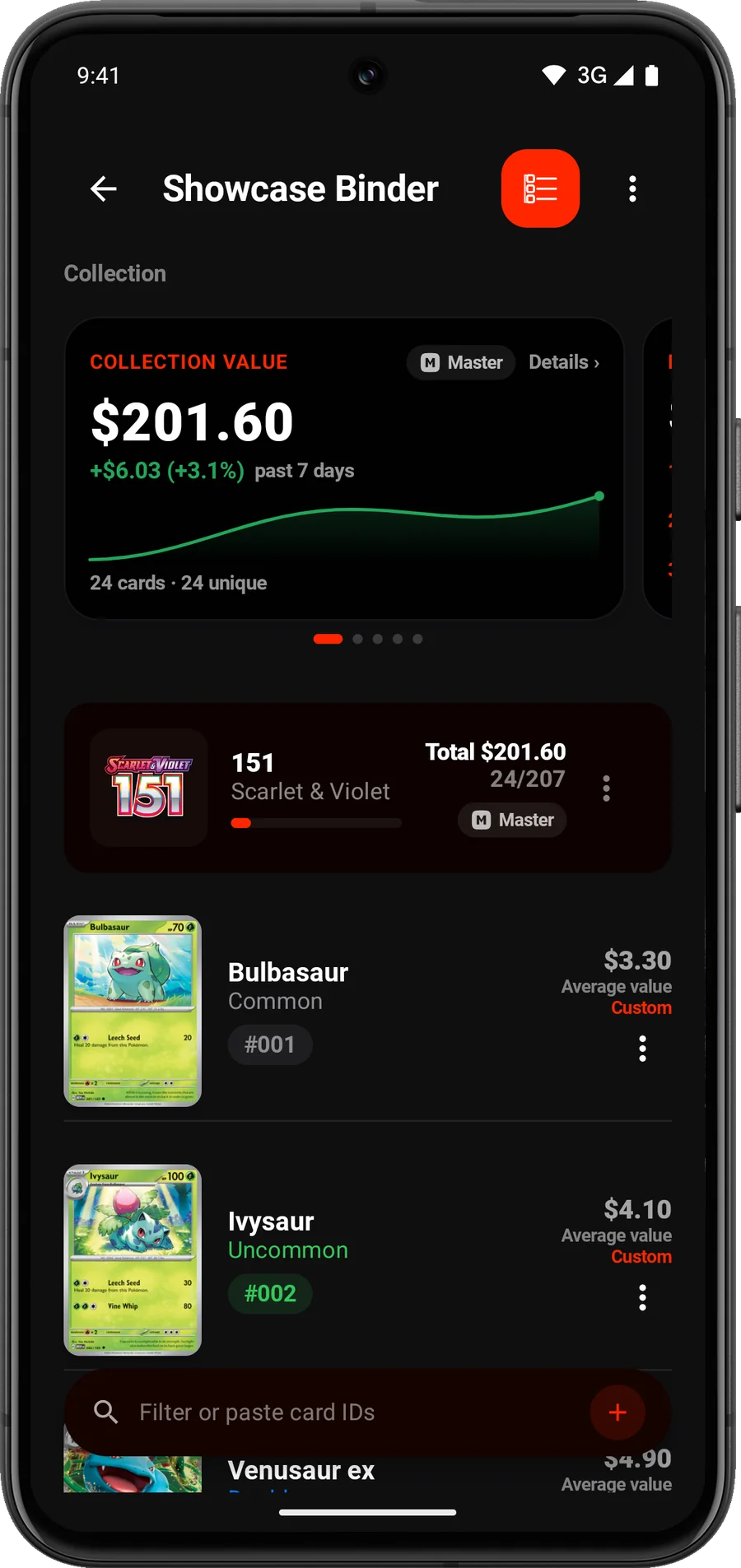
Android Compare the saved entries with the cards in front of you. -
Keep missing cards separate from owned cards
Use your wishlist for cards you hope to acquire. Do not add a wanted card to an owned collection just to remember it.
When a card arrives, confirm its exact version, add the copy you now own and review the corresponding wishlist entry.
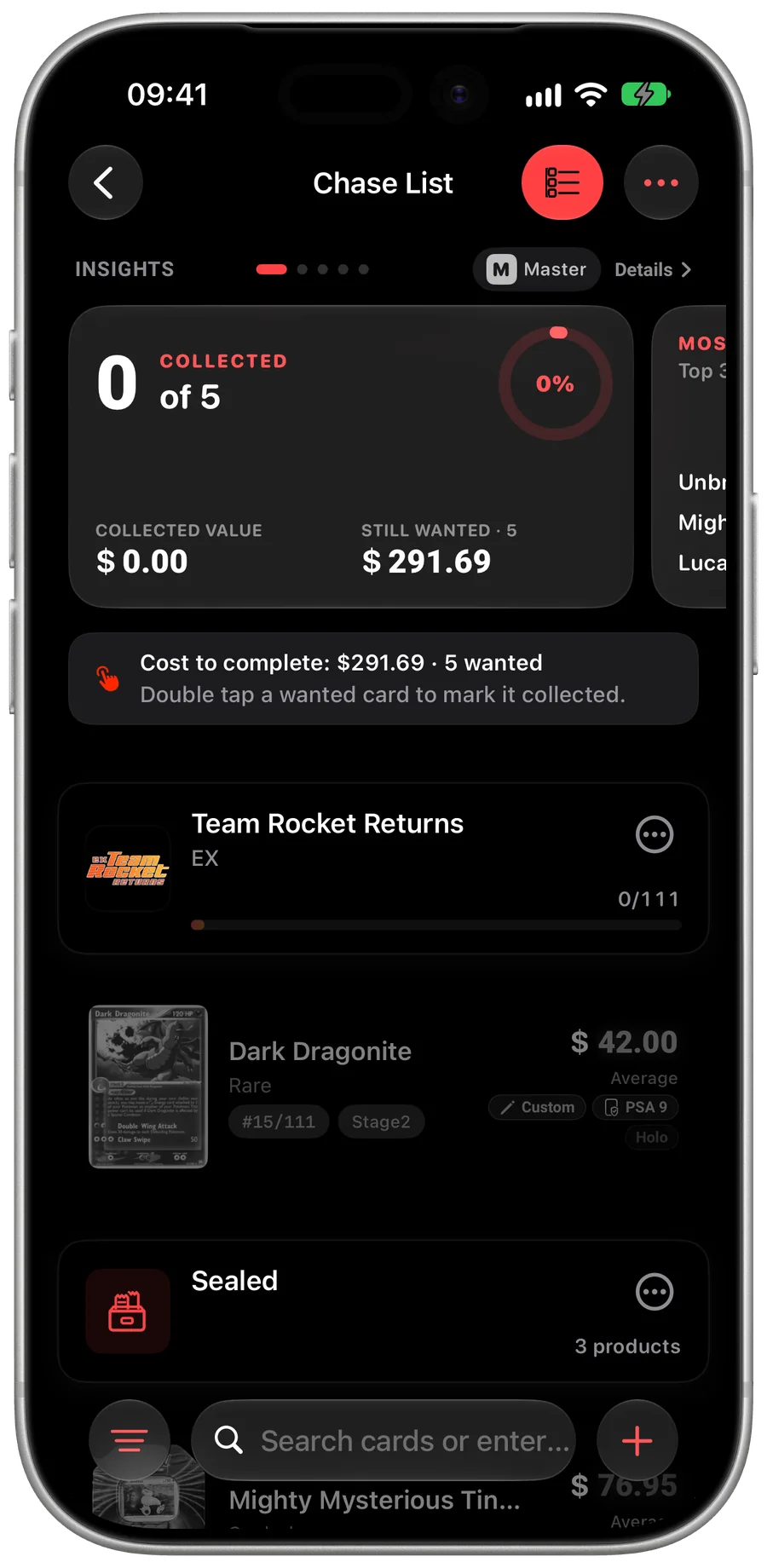
iOS Keep collecting goals in your wishlist. 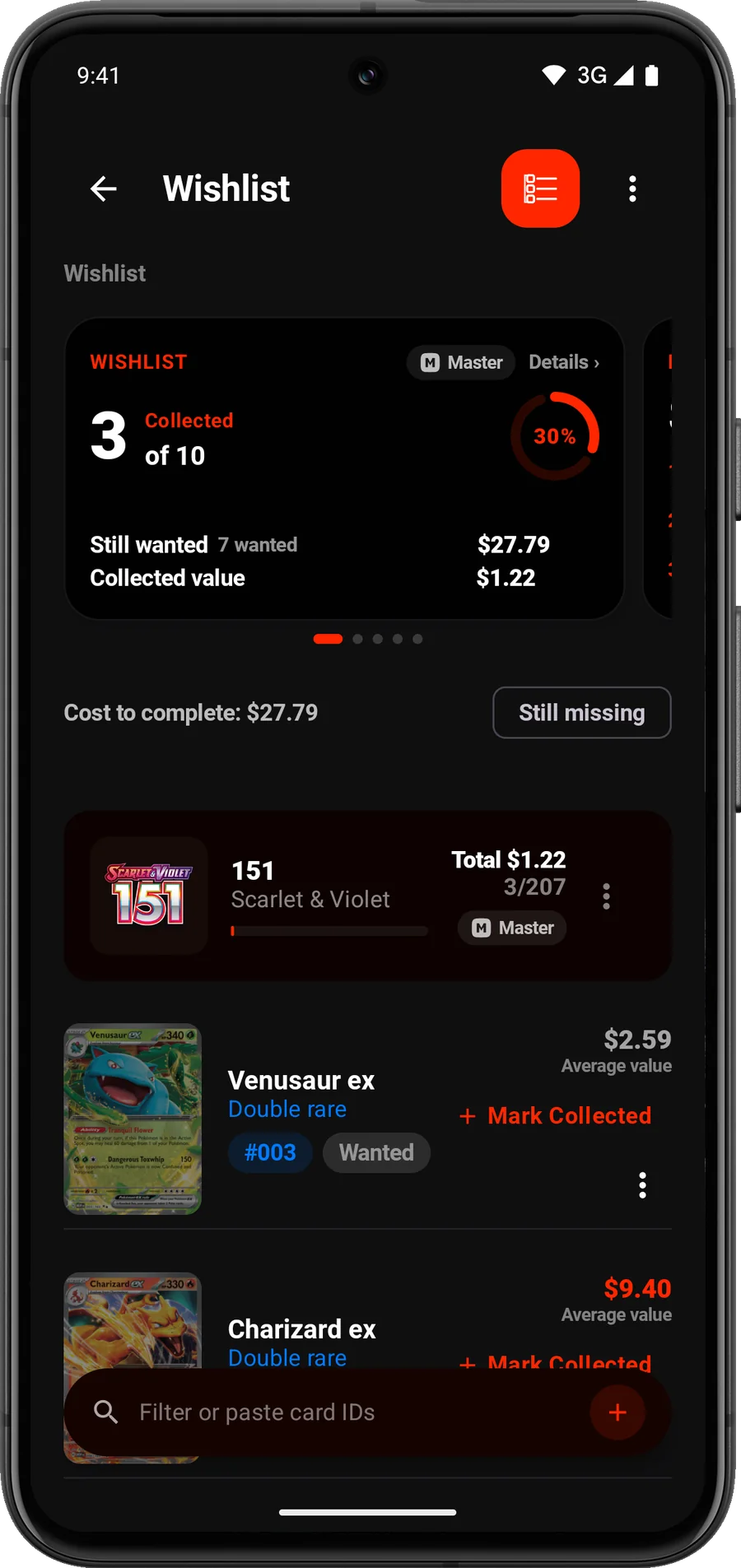
Android Keep collecting goals in your wishlist. -
Reconcile after trades and keep a dated copy
After giving away or selling a copy, adjust the relevant collection so it still matches your physical cards. Check a few sections of the binder periodically rather than waiting for a full recount.
Export a dated CSV or JSON inventory before a major reorganization. Sync can keep selected collections current across devices, while an export preserves a fixed point in time.
A routine for the next pack or purchase
Place new cards in the unchecked area, identify them, verify their printing, save the correct quantities and then file them. This small routine is more useful than repeatedly rebuilding your entire inventory.
When a count does not match
Suppose you have recorded three regular copies and one reverse holo of the same numbered card. You trade away one regular copy. You now have two regular copies and one reverse holo: three cards in total. Update the regular copies in that collection, leave the reverse holo unchanged, and compare the saved entries with the cards you still have.
If a count is wrong, set that card aside and compare its set, number, language and finish with the saved entries. Check whether you recorded a copy in another collection before adding it again. Correct the affected entries first; you do not need to rescan the entire binder.
Keep trade intentions clear
A collection named Trade Duplicates can help you organize your own stock. Its name does not list those cards for sale or reserve them for another person. Check physical quantities and your own records before agreeing to a trade.
Check your result
Your cards have a place, your inventory matches them, and you have a routine for the next pack or purchase.
Common questions
Can I track duplicate cards?
Yes. Check the quantity for each exact printing. Copies with different finishes, languages or grades should not be treated as interchangeable entries.
Should every binder be a separate collection?
Only if that helps you find and maintain your cards. A collection can represent a binder, set or collecting goal; choose a consistent approach you can keep current.
How do I stop the list becoming outdated?
Record new arrivals before filing them and adjust quantities after trades or sales. Periodically compare a small section of the saved inventory with the physical cards.
Features used in this walkthrough
 Collection Tracker
 Scan Sessions
 Exact Printing & Variants
 Wishlist
 Export Your Data
More walkthroughs
Open Eyevo and follow the steps.
Use your own cards as you follow the steps.
Walkthroughs describe the current app. Labels and available options can differ by device and version.