
Collector walkthroughs
Prepare your Pokémon collection for sale
Build a buyer-ready inventory with the right quantities, condition photos and dated price references before you offer your cards for sale.
Decide which cards you are selling, identify each printing and count the physical copies. Photograph their condition, compare matching completed sales and prepare a dated list that agrees with the cards you will hand over. Eyevo can help with the inventory; the sale takes place outside the app.
Before you start
- The cards you intend to sell, good light and a phone camera.
- A spreadsheet or written inventory works too. You can finish this preparation without using a collection app.
Device notes
In Eyevo, standard collection export requires Pro on iPhone and iPad. Android currently offers it without that restriction. Creating a live collection-sharing link requires Pro and a connection; a buyer can open a view-only link in a browser.
Step by step
-
Set aside the cards you are offering
Separate cards you want to keep from the sale pile. Ask the intended buyer or shop what they need: an initial bulk enquiry may only require overview photos and an approximate count, while an itemized offer needs a clearer list.
If the cards are already in Eyevo, work from their existing collection and check the physical pile alongside it. Do not add a second set of entries just to make a sales list; that can inflate your recorded holdings.
-
Match the printing, then count copies
For each listed card, check the set, collector number, language, finish and any edition or promo stamp. A scan identifies a catalog match; compare it with the physical card before saving.
Three regular copies and one reverse holo make four physical cards across two inventory entries. If you are keeping one regular copy, the offer contains two regular copies and one reverse holo: three cards. Record the quantities you are actually offering, rather than copying the whole collection total.
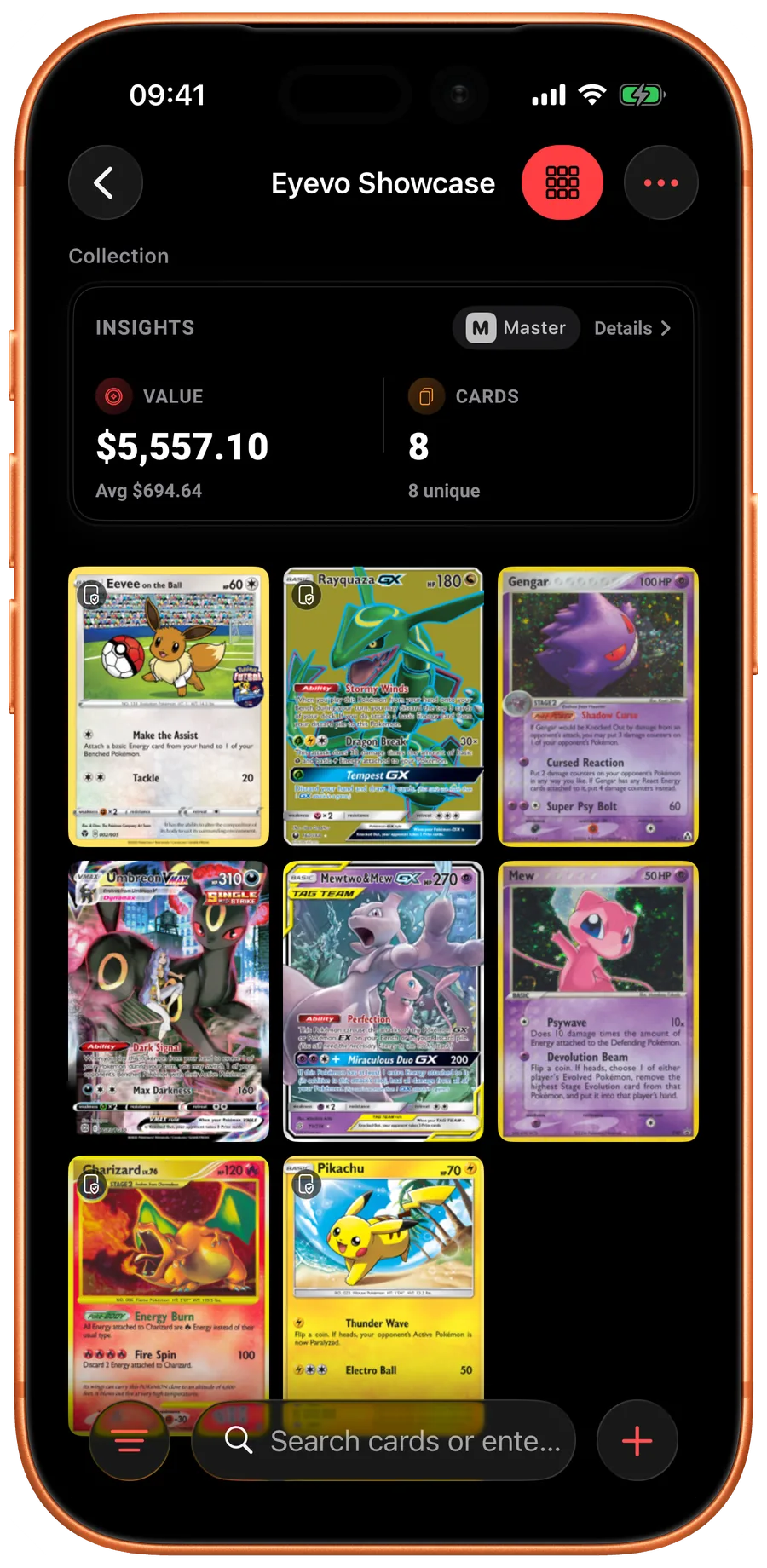
iOS Check the recorded cards and quantities against your sale pile. 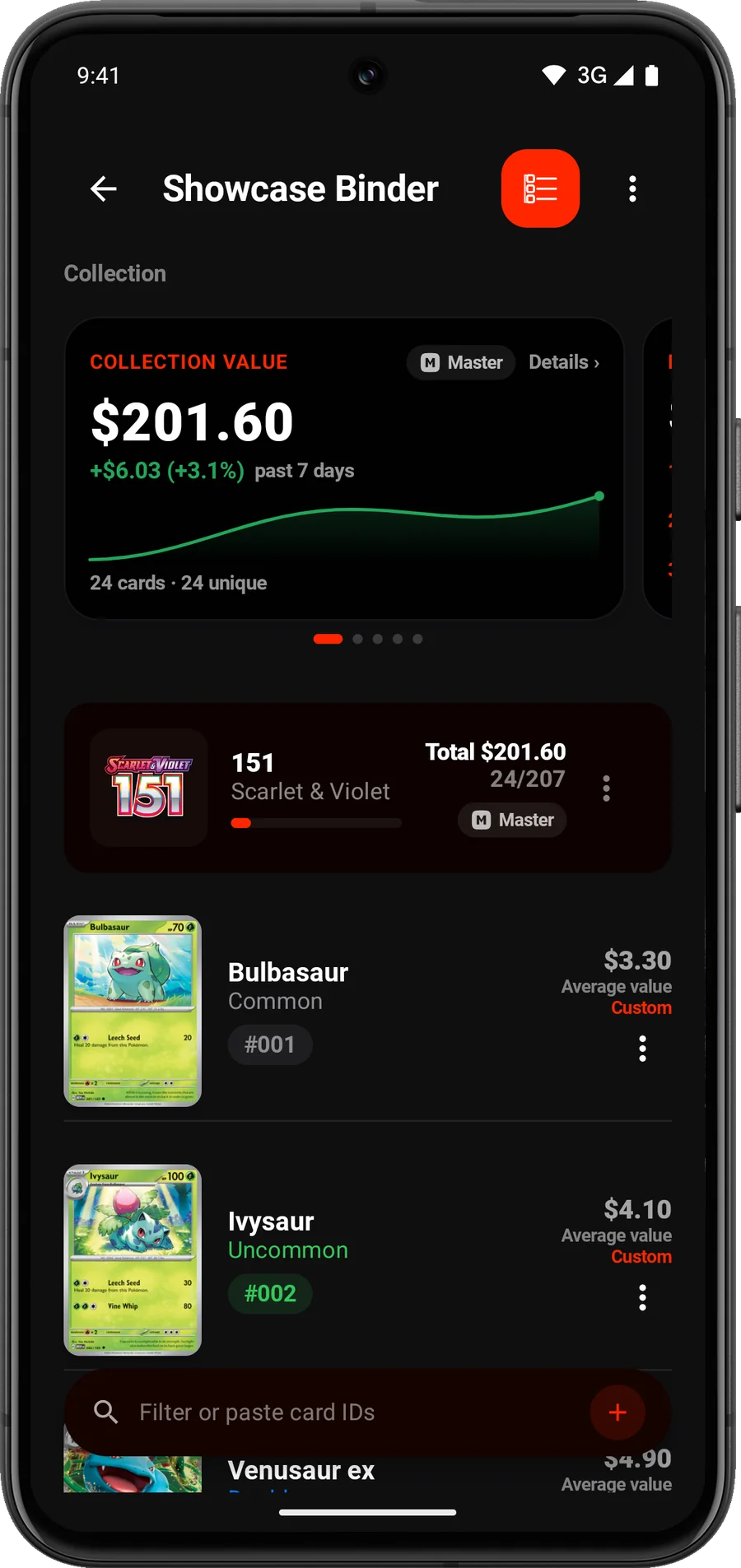
Android Check the recorded cards and quantities against your sale pile. -
Describe and photograph each condition
Inspect the front, back, corners, edges and surface in diffuse light. Take clear front-and-back photos, then close-ups of creases, scratches or worn areas. Use the condition guide of the marketplace where you will list the cards; condition labels differ between marketplaces.
Give individual copies a simple reference in your buyer list, such as A1 and A2, and use the same reference in photo filenames. If two copies have different wear, describe them separately even when Eyevo groups them in one quantity.
Add condition notes and photo references to your separate buyer sheet. Standard Eyevo exports do not include dedicated fields for these notes or photos. Eyevo does not authenticate cards or automatically grade the condition of ungraded copies.
-
Keep comparable prices and their dates
Search for recent completed sales of the same printing, language, finish and similar condition. Compare ungraded cards with ungraded cards; for a graded copy, match the actual grading company and grade. Record the source URL, sale date, currency and whether shipping is included.
An active asking price is an offer, not a completed sale. On eBay, use sold results or Product research where available; Product research can show accepted Best Offer prices. If no close match exists, leave the estimate open and explain what is missing.
Refresh available references in Eyevo before using them. A missing quote is unknown, not zero. A collection total is a starting point for comparison; fees, shipping, condition and the way you sell affect what you receive.
-
Prepare a dated buyer list
On iPhone or iPad, open the collection and choose ⋯ → Share → Export Collection. On Android, open the collection and choose ⋯ → Export. Choose CSV for a spreadsheet and keep the original export unchanged.
The CSV starts with collection information before the card-table header. In your working copy, keep card identifiers and printed numbers as text so spreadsheet software does not turn them into dates or remove leading zeros. Select only the cards and quantities you are offering.
Add your condition descriptions, photo references and dated comparisons to that working copy. Check its quantity sum against the physical pile; the number of rows is not the number of cards. An export is a fixed snapshot and does not refresh prices as the spreadsheet sits open.
-
Check exactly what the buyer receives
Send the selected file and photos, or choose a view-only collection link if you want to show a current inventory. Open its preview before sending: check the title, included cards, quantities and visible price information. Hiding individual prices can still leave an aggregate value visible.
Anyone with a view-only link can access it. Do not send a collaborative editing invitation or your private device-sync key for a sales enquiry. Turning off a link can end future access, but cannot retrieve files or photos a buyer has already saved.
Keep your original inventory while you discuss the offer. After an external sale is complete, reduce only the quantities actually sold. Update the buyer list or end its link if the remaining offer has changed.
A buyer list you can reconcile
Use one row for each printing, language, finish and condition group. Give separately photographed copies their own references. A practical row might describe one reverse-holo copy with a visible crease, linked to its front, back and crease photos. Keep it separate from three regular copies of the same card.
- Identity: card name, set, printed number, language and finish.
- Offer: quantity, condition description and photo reference.
- Comparison: matching sold item, sale date, source link, currency and shipping treatment.
- Your asking price, if you choose one, in a separate column from the reference price.
Choose how much detail the sale needs
For a whole collection, an overview and total physical count help a buyer understand the lot. Give individually priced cards more detailed rows and photos; describe bulk groups honestly without treating every card as equally valuable.
A buyer taking a whole lot may offer less than the sum of individual reference prices. Decide whether you prefer that convenience or the work of separate listings. Eyevo does not list your cards for sale, find a buyer or handle payment.
Condition and sales references
Check the destination marketplace’s own condition rules before choosing a label. For price research, keep the individual comparison links in your buyer sheet. These help pages explain the underlying methods.
Check your result
You have a dated list that matches your sale pile, photos tied to the correct copies and price references a buyer can follow. Keep that record until the sale is complete, then update the quantities you still own.
Common questions
Will a buyer pay the collection value shown in Eyevo?
That value combines available references for the saved entries. It is not a buyer’s offer or net proceeds. Research comparable sales, account for condition and costs, and agree the actual price with the buyer.
Do I need an app to prepare my collection?
No. A spreadsheet, clear photos and careful physical counts can do the job. Eyevo helps identify and organize the cards if you already use it or want a collection inventory.
Can I send the original export straight to a buyer?
Check it first. It may include cards you are keeping and values you do not want to share, and it has no dedicated condition-photo fields. Keep the original, then prepare a buyer copy containing only the intended offer.
Should I import the buyer spreadsheet back into Eyevo?
Keep it as a separate sales document. An edited spreadsheet is not automatically an Eyevo-compatible import. Supported Eyevo CSV and JSON imports are additive; importing an existing inventory again can add copies twice.
Features used in this walkthrough
 Collection Tracker
 Exact Printing & Variants
 Market Prices
 Export Your Data
 Collection Links
More walkthroughs
- Found your old Pokémon cards? Start here.An old binder is back on the table. Identify its cards, check their printings and build an inventory one page at a time.
- How to organize a growing Pokémon card collectionYour cards are spread across binders, boxes and recent pulls. Give them a clear order and keep the same record in Eyevo.
Open Eyevo and follow the steps.
Use your own cards as you follow the steps.
Walkthroughs describe the current app. Labels and available options can differ by device and version.