How to Update a Pokemon Card Variant in Eyevo
The scanner can’t always tell a holo from a reverse holo from a glossy normal in bad lighting. That’s fine — fixing it takes one tap. This is the practical walkthrough.
The three places you can change a variant
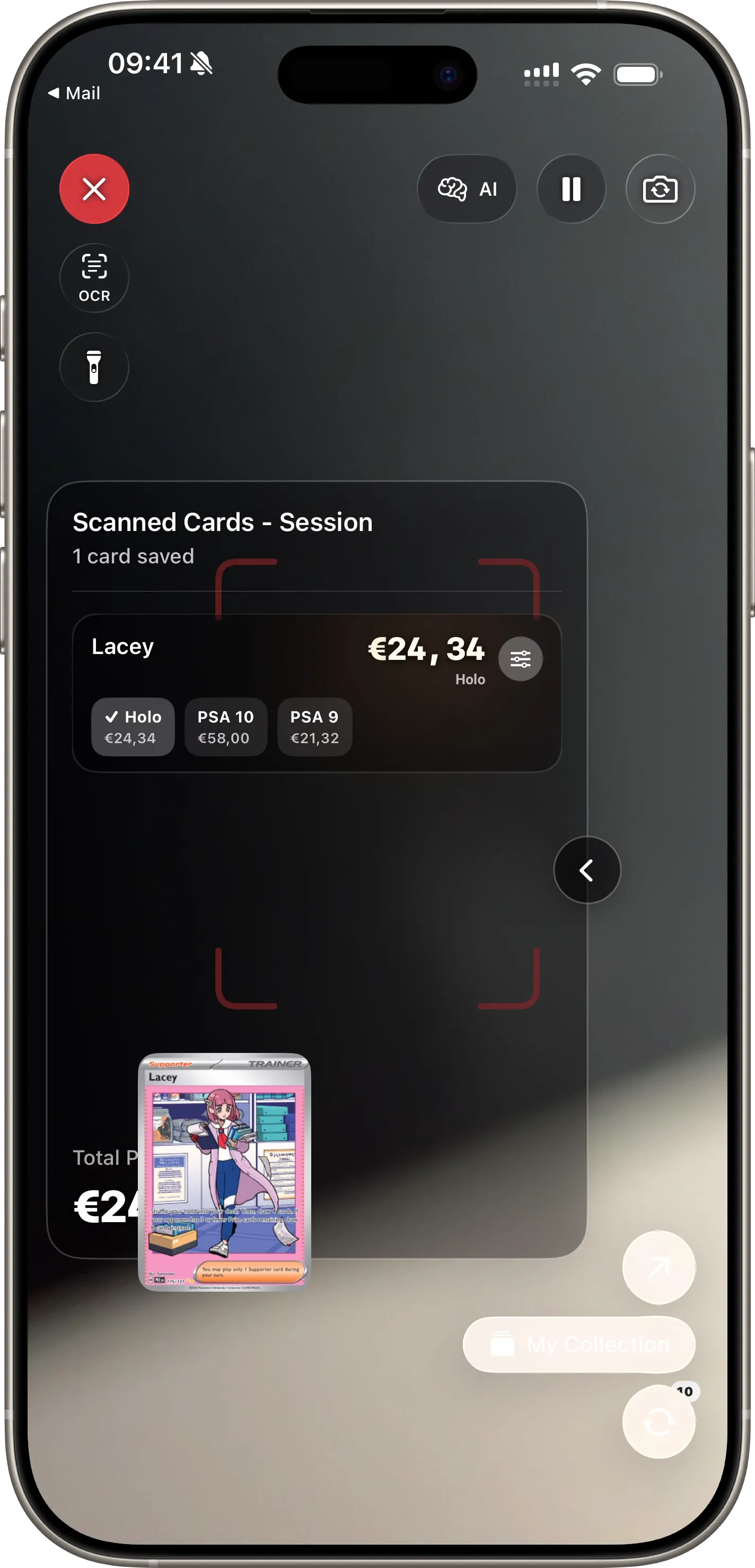
1. Right after scanning (the drawer)
The scanner drawer shows every card you just scanned with a variant chip on each row. Tap the chip, pick the right variant, done. The price updates instantly. The AR overlay re-renders with the new price. If you add the card to a collection, it saves with the correct variant already set.
2. From the collection list (long-press)
Long-press any card in your collection → Change Variant → pick the right one. The collection row, the pricing, and every scanned entry linked to this card all sync.
3. In the card detail sheet
Open any card. Tap a price to cycle variants directly — holo, reverse, 1st edition, PSA. The card detail is variant-aware: when you change the variant, the whole sheet reflects it.
Why it matters for your portfolio
- Holo-only cards no longer get under-counted as normals.
- PSA slabs show graded comps, not raw.
- 1st edition vintage finally gets the multiplier it deserves.
- Reverse holos in modern sets stop disappearing into the noise.
When the scanner guesses wrong
Usually:
- Low light — reflective foil patterns don’t register cleanly.
- Sleeved cards — the sleeve glare confuses the camera.
- Trick printings — cosmos holo vs standard holo on the same set.
All three are fixable in under two seconds with the drawer picker.
Learn more: Variant-Aware Prices · Card Scanner
Ready to scan your cards?
Download Eyevo and identify your Pokemon cards in under a second.
Pokemon TCG Card Scanner Know Exactly What It’s Worth.
Eyevo identifies the exact printing in under a second, then shows live raw, graded, and sold prices. Recognition works offline, and your collection stays on your device.