Power-User Tips: The Eyevo Long-Press Menu
Most Eyevo users tap. Power users long-press. The context menu is the fastest way to take action on a card without leaving the list — and it exists on every card in the app.
What the long-press menu does
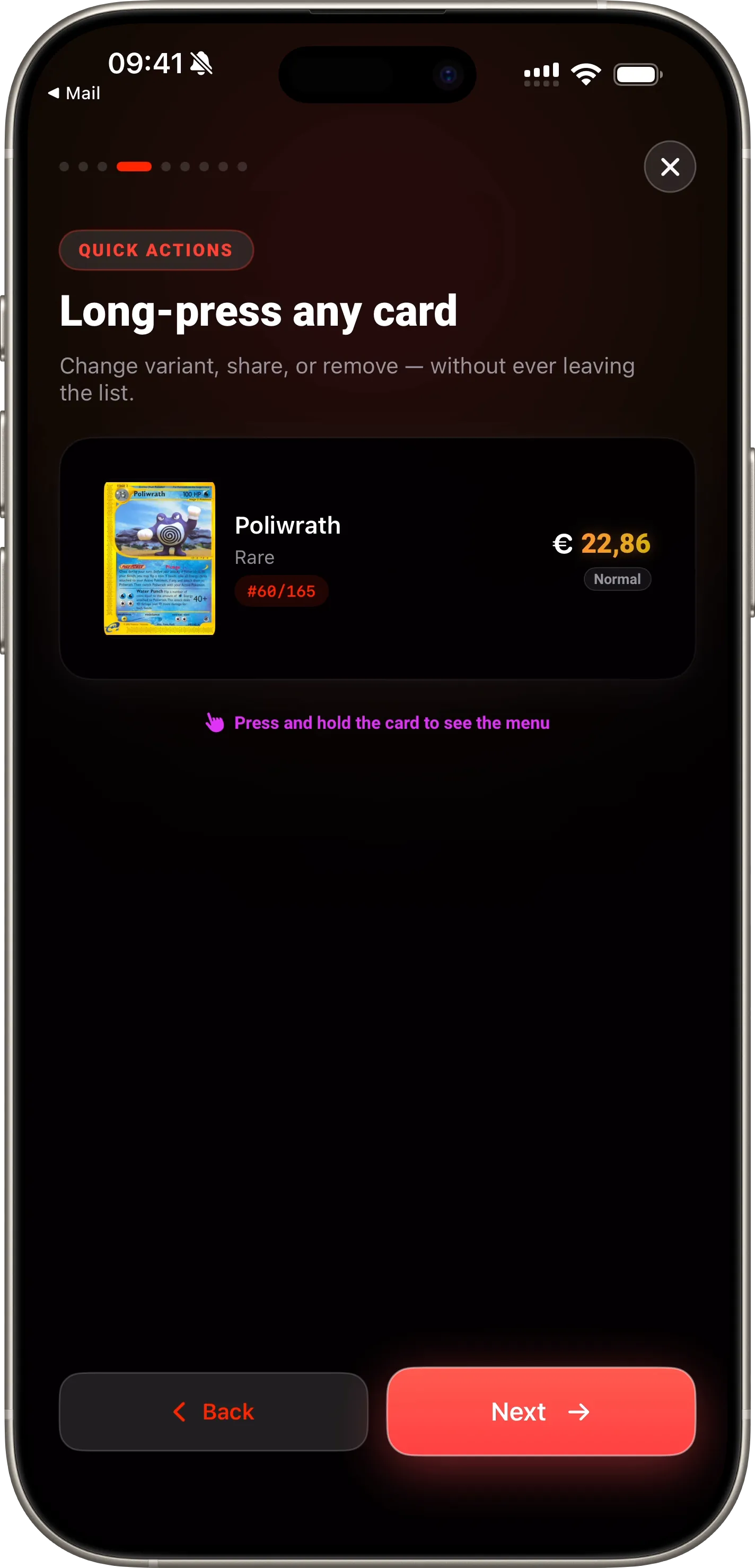
Long-press any card row, anywhere — search, collection, set detail, scanned list. You get a context-aware menu with exactly the actions that make sense for where you are.
The four modes
The menu adapts to context:
- Owned (collection) — See Variants · Change Variant · Share · Remove
- Scanned (not yet in a collection) — Change Variant · Add to Collection · Share · Delete Scan
- Unowned (search, set detail) — See Variants · Add to Collection · Share
- Inspect — See Variants · Share
The actions worth learning
- Change Variant — Pick holo, reverse, 1st edition, or a PSA grade. Prices and your collection sync automatically. See the variant guide for details.
- Share — Opens the card presenter with the correct variant. The composed share image reflects what you actually own — no generic “normal” placeholder.
- Add to Collection — If you have multiple collections, pick where it goes.
- Remove — One tap to drop a card from a collection. Doesn’t delete the scan history.
Why this saves time
The old workflow for changing a variant was: tap card → open detail sheet → tap variant → confirm → back out. Four taps. The long-press menu does it in two.
Multiply that by a 500-card collection and you’ll get why it matters.
Pro tip: the PSA shortcut
Long-press → See Variants shows PSA 10, 9, and 8 market comps right in the menu. No need to open the detail sheet for a quick price check.
Learn more: Collection Tracker
Ready to scan your cards?
Download Eyevo and identify your Pokemon cards in under a second.
Pokemon TCG Card Scanner Know Exactly What It’s Worth.
Eyevo identifies the exact printing in under a second, then shows live raw, graded, and sold prices. Recognition works offline, and your collection stays on your device.